![Variation=Brandmark, Color=WhiteVector.svg]](https://support.q7leader.com/hubfs/Variation=Brandmark%2c%20Color=WhiteVector.svg)
Step 1: Accessing the Dashboard and Your Task
- Start by logging into your myQ7Leader.
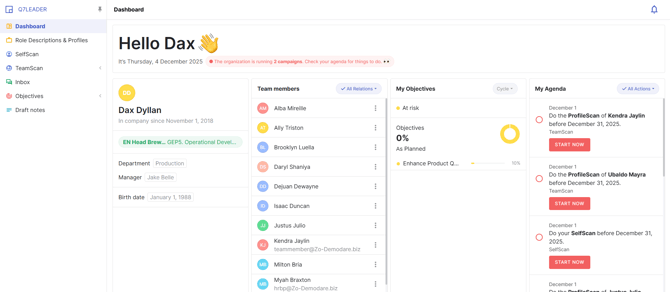
- Navigate to your Dashboard and open the “ProfileScan" Task in "My Agenda" Section. Then click "Start Now".
Step 2: Fill in the Information
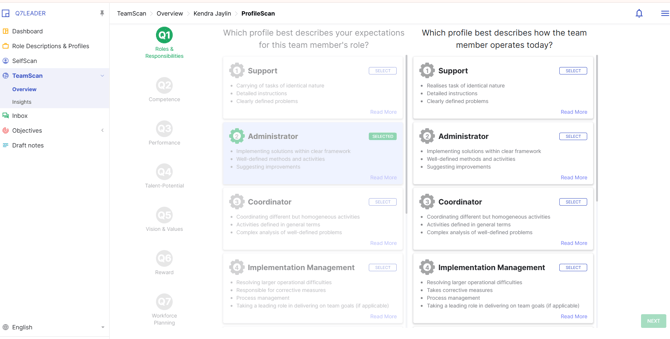
- Once the task is open, carefully enter the required information in each field.
- Take your time to ensure that all details are accurate and complete.
This guide explains step by step how to complete the TeamScan.
Step 3: Submit the TeamScan
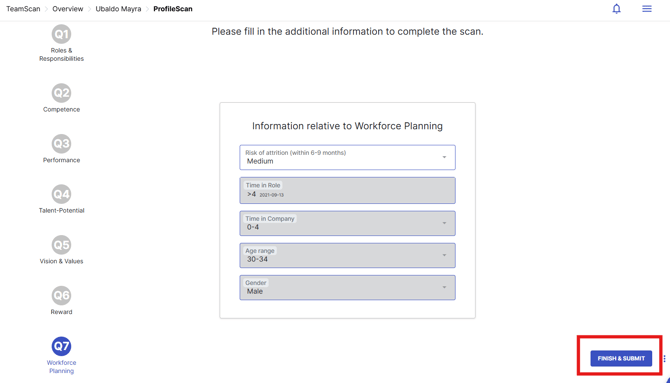
- After completing all the necessary fields, review your entries to ensure everything is correct.
- Once you’re satisfied, click the “Finish & Submit” button.
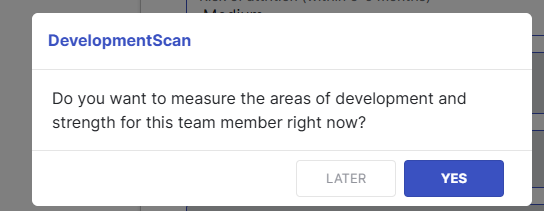
Once you submit, you will have the option to complete the DevelopmentScan immediately or save it to complete later.
To modify or remove a TeamScan from a campaign, follow the instructions in this article.