![Variation=Brandmark, Color=WhiteVector.svg]](https://support.q7leader.com/hubfs/Variation=Brandmark%2c%20Color=WhiteVector.svg)
The TeamScan module in MyQ7Leader is designed to help managers simplify the management of their direct reports by providing a comprehensive approach to performance evaluations, succession planning, and talent development.
This tool enables managers to make informed decisions about their team’s growth and its alignment with company objectives, ensuring that talent is nurtured and retained.
Key Features:
-
Filter and save direct reports for easy access
-
Create and edit existing TeamScans
-
Perform succession planning to identify potential successors
-
Create and review development scans aligned with role expectations
-
Take and manage notes
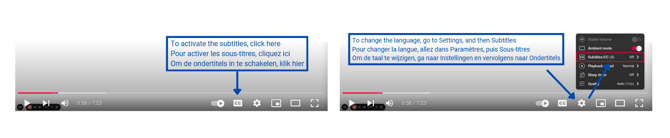
To enable subtitles in your language, please follow the instructions below:
Transcription
0:03 Hello, my name is Dax. I’m the production manager at my company, and today I’m going to walk you through the TeamScan module in MyQ7Leader.
0:12 As a production manager, by default, I see the entire production team, but I’m only the direct manager of five team members.
0:21 First, I need to filter out people who don’t report directly to me using the filters, and I need to find the "relationship" filter.
0:29 Then, I select "manager," which will show only my direct reports that I need to profile today.
0:37 If I want to reuse this filter for easier access, I can set it up and save it like this, calling it "my direct reports." Later, I can simply clear it and reload it, and the same filter will be applied.
1:05 My company has been using MyQ7Leader for a few years, so I’m not a new manager. I already have data here. But if you’re a new manager or have new team members, you might see empty rows and you may not see TeamScans like I do.
1:16 This is because I can see the history of TeamScans from previous talent cycles. Today, I’m going to profile Kendra, so I’ll go to her profile.
1:25 On her individual page, I see some personal information at the top. If I open this menu, I can see additional fields if needed, but I can always close it.
1:37 Next, there is the persona and smart questions. These are always linked to the last TeamScan completed. So if you don’t have any TeamScans in your history, you won’t see a persona or smart questions.
1:49 Once a TeamScan is created, these elements are automatically generated. The platform will generate them for you. Here is the TeamScan.
1:56 As I mentioned, my company has used MyQ7Leader for a long time. I can see history going back to 2021. In your case, you may have fewer or more rows depending on how long your company has used the platform.
2:11 I can also add additional columns to this view, for example, the creation date or the time related to these TeamScans.
2:20 Next, there’s succession planning. Here, I can decide who could be a potential successor for Kendra, who she could replace, or what her next career move could be.
2:33 This field may or may not be visible to you, depending on whether your company uses the RDP module.
2:51 Then, there’s the DevelopmentScan. Here, I can create a new DevelopmentScan or, if one already exists, all responses will appear here, as you’ll see.
2:51 I can also check the RDP, meaning the role description and profile related to my team member. Again, if your company doesn’t use RDP, you won’t see this section.
3:01 Here, I can see the specific expectations related to Kendra’s role. In this case, she’s a brewer and distiller. I can review all the definitions related to this role.
3:14 At the bottom, I’ll find management practices related to my team member’s role. In this case, Kendra is an administrator.
3:22 My management practices give me guidance on the best way to manage a team member in the administrator role.
3:31 Next, I need to create a new TeamScan. I’ll go to ProfileScan. Continue. The first question is already answered by HR.
3:40 So I don’t need to make a selection, but in your case, you might have to. It depends on your company. Since the first question is already answered, I start with question two, which is the operating level.
3:53 I need to see at what level my team member operates relative to organizational expectations. For a brewer and distiller, the expectation is level two administrator, where I can also expand and read the definitions in more detail. I must decide if Kendra operates at this level, or maybe below or above. Then I continue to the next question.
4:18 The next question is about performance. We review the team member’s performance over the last six months, since the last talent cycle. I have three categories: below expectations, meets expectations, or above expectations. If your team member has been in the role less than 90 days, I can select "new." I can also always open the definitions to read them.
4:43 In my case, I know Kendra meets expectations, so I make that selection and move to the next question.
4:50 Here, we evaluate talent and potential. We look at the future to see if Kendra has the potential to move to a higher level or a more complex role. I can also read the definitions if I wish.
5:11 In my case, after reviewing the definitions, I can confirm Kendra is a key contributor, so I select that.
5:20 Next, we have the values and vision matrix, where I need to assess how well Kendra reflects the company’s values.
5:27 Here, we have two variables: performance and citizenship. Based on this, there are different levels.
5:36 After reviewing the definitions, I know Kendra is "emerging" in values and vision. I select that and move to the next question.
5:45 Next is compensation. In my company, as managers, we know our team members’ pay level.
5:54 I can select that she’s paid at the median, but in your company, you might not have this data or may only estimate.
6:06 If unsure, you can select "no idea." In some cases, HR may have this information.
6:12 If you don’t have the info, HR might. You can select "no idea," and HR will update it later.
6:21 On this page, some fields are already filled by HR, so I don’t need to do anything about them.
6:25 But I must answer the attrition risk question: what’s the likelihood Kendra will leave in the next six to nine months?
6:32 In my case, I’d say low. Then I simply complete my TeamScan. As I said, the persona and smart questions are always linked to the last TeamScan.
6:44 They were generated by the platform. Here’s the TeamScan we just created. Later, if you review talent and change your mind about a question in the last TeamScan, you can edit it.
6:57 For example, if I’m unsure about performance or, during a talent review, I discuss with colleagues and decide she’s not just a good performer but an excellent one.
7:10 I can click the last row, go to the performance question, and select the correct value.
7:17 Then I can exit. The last TeamScan will be updated with this value. But if you need to create a new TeamScan without updating the last one, as in my case, when I changed a value for this talent cycle, not the previous one,
7:36 I can click this row. If creating a new row, always go to ProfileScan.
7:43 If you have DevelopmentScans in history and want to view them, in my case I don’t, but if you do, there might be a DevelopmentScan, though I’m not sure of the values at that time.
7:57 I can click the three dots and view the corresponding DevelopmentScan here.
8:02 As I said, there was no DevelopmentScan here, so I won’t see one. Otherwise, you’ll see all responses linked to that DevelopmentScan. To create a DevelopmentScan, I can click the "start" button or the arrow next to ProfileScan and select DevelopmentScan.
8:18 DevelopmentScan helps validate my team member’s operating level.
8:26 Here, I have all definitions related to the administrator role profile for Kendra. I can approve, disapprove, or mark as a strength for each variable.
8:41 I can quickly answer these questions, then save. Before saving, I’d like to take a note.
8:51 During TeamScan or DevelopmentScan, you can always access these three horizontal lines to take a note.
9:00 I can open the notes section, write a note, add a title, and select a note type.
9:09 This could be an action item or a talent review summary. In my case, it’s an action item, so I select and save.
9:18 Now I have my note created during DevelopmentScan. I can save. Anytime, you can create a note via these three lines, and see past notes.
9:33 You can also create a new note here. Take a note. Since I created the DevelopmentScan, I can see all my responses.
9:44 Yellow shows development areas, light green shows developed areas, dark green shows strengths.
9:52 I can also see percentages. This DevelopmentScan relates to the last TeamScan, and I see 31% development areas and 31% strength areas. That’s all you need for your talent cycle.
10:07 Anytime, you can view notes created for your team in the notes section.
10:19 You can also add extra columns here, like date, note type, and author, since sometimes it’s not you who created the note.
10:28 You can filter to find a specific team member, or view notes via their individual page, as I showed earlier.
10:39 You can filter by note type, or see only notes taken during this talent cycle, for example from May 15 to today.
10:52 Here are all notes taken during that period. I hope this has been clear, and thank you for your attention.