![Variation=Brandmark, Color=WhiteVector.svg]](https://support.q7leader.com/hubfs/Variation=Brandmark%2c%20Color=WhiteVector.svg)
Have questions about the Conversations and Objectives modules?
This article covers the most common questions and tips to help Team Members and Managers use the modules effectively all year long.
If you want to explore either of them in more detail, please refer to the dedicated article:
Questions you will find in this article:
-
What is the purpose of the "Save" button in my Conversation?
-
What is the purpose of the "Submit" button in my Conversation?
-
When I try to submit my answers, I get an error message that prevents me from submitting. Why?
-
Can I update the content of an objective after it's been submitted?
- Who can view or edit conversations?
- Who can view or edit objectives?
-
As a manager, why can’t I edit the conversation of my new team member?
-
When do I or the other participant of an objective or conversation receive notifications?
- My organization is running a campaign but I don't see the task in my Agenda. Why?
-
Is it possible to duplicate an objective from one cycle to another?
Q: How do I access the Conversations and Objectives modules?
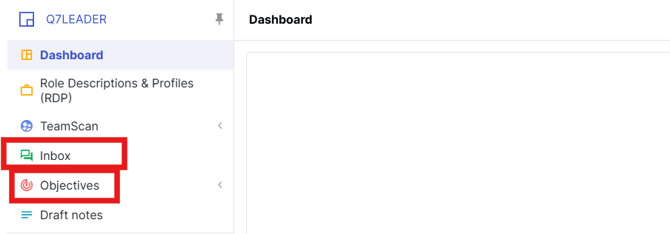
A: Log in to your MyQ7leader account. Once logged in, you can access the modules in several ways:
-
From your Dashboard
-
Through a campaign task, if your company is running one
-
From the main menu:
-
Inbox → Conversations module
-
Objectives → Objectives module
-
Your ability to view, create, or edit content depends on your role and permissions.
As a team member, you can always edit open conversations with your manager. As a manager, you can start and edit conversations for your team, as well as for other team members in conversations you are participating in.
Q: Do I need specific permissions to use these modules?
A: Yes. You must be invited to the platform by your Admin, who assigns the permissions needed to access the Conversations and Objectives modules.
Q: What types of conversations can I create?
A:
As a Team Member: You cannot create conversations yourself. You can:
-
Complete conversations assigned through a campaign.
-
Participate in conversations initiated by your Manager.
As a Manager: You can:
- You can start a conversation with any team member, whether they report directly to you or not, essentially anyone you have access to through your Direct Reports or All views.
-
Create conversations using organization-published templates.
-
Create personal templates for your own use (e.g., 1:1s or feedback sessions).
Personal templates are private and not shared across the organization.
Q: Can my Manager or Team Members see my answers?
A: Yes. Once you click Save, your answers become visible to the other participant. You can still edit them afterward, but they will already be viewable.
If you want to prepare content privately before sharing, you can prepare in an offline document on your computer, outside of the platform.
Q: What do the different buttons mean in my Objectives?
A:
-
Save Draft: Saves your objective privately; only you can see it. Your manager won’t have access yet.
-
Save: Makes the objective visible to your manager so both of you can view and edit it, but it hasn’t been officially submitted by either participant.
-
Submit: Indicates that you’re finalizing the objective. Once both you and your manager submit the same version, the objective is “Signed Off” and locked from further edits, except for feedback or progress updates.
Q: What is the purpose of the "Save" button in my Conversation?
A: The Save button creates or updates the Conversation so it remains open, editable, and accessible to both the Manager and the Team Member. While saved (but not submitted), either person can modify it.
Q: What is the purpose of the "Submit" button in my Conversation?
A: The Submit button signals that the person clicking it (Manager or Team Member) has reviewed and approved the Conversation content. When both parties have submitted, the Conversation is finalized, signed off, and locked, including any linked objectives. Any changes made after you submit but before the other person has submitted will reset the other person's submission.
Q: When I try to submit my answers, I get an error message that prevents me from submitting. Why?
A: This usually happens because some required fields in the conversation haven’t been completed. Make sure all mandatory fields are filled in before submitting. If you’re not able to complete everything right away, you can save your answers and return later to finish.
It can also happen if the other participant has made changes at the same time, first copy your answers elsewhere. Then refresh the page and re-enter your updates. This ensures you’re always working on the latest version of the conversation, allowing you to collaborate effectively without overwriting the other person’s contributions.
Q: Where can I access objectives from previous years?
A: With the release of the new Objectives module, all past objectives have been archived and are accessible by HR or Admin users.
If you need access to historical, please contact your HR or Admin team.
Q: Where can I access conversations from previous years?
A: They are all visible in your inbox but not editable. You can see all of them in your “Me” view. Additionally, if you’re inside a conversation and want to switch to a previous one, click the small clock icon at the top to access a list of all your past conversations.
Q: How do I create objectives?
A: You have the ability to create new objectives, either for yourself as a team member or for your team as a manager. All objectives you create must be reviewed and approved by both you and the other participant before they are finalized.
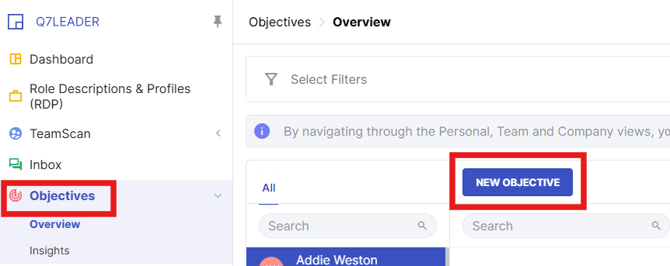
You can create objectives in two ways, depending on your organization’s setup:
-
Within a Conversation template, if objectives are enabled there
-
Directly in the Objectives module by clicking NEW OBJECTIVE
Q: How do I link objectives to conversations?
A: Objectives can be linked to a conversation if your Admin has included them in the conversation template. When objectives are part of the template, you can create or review them directly within the conversation.
If objectives are not included in the conversation, you’ll need to manage them separately in the Objectives module.
Q: Can I update the content of an objective after it's been submitted?
A: Yes, with some limitations.
-
Once an objective is signed off, it becomes locked and cannot be edited.
-
If changes are needed, an Admin must unlock the objective, and both parties must resubmit their approvals.
Q: How do I track progress on objectives?
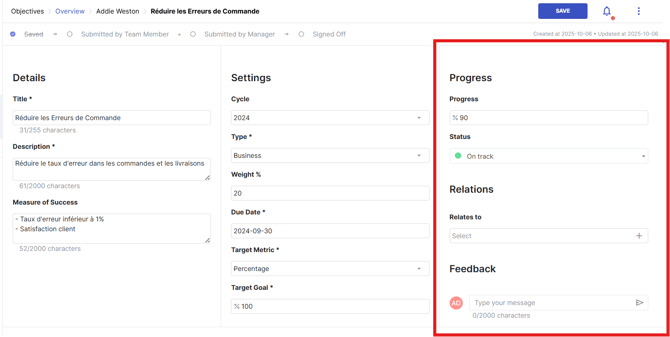
You can track progress at any time by opening the objective and using the right-hand panel to:
-
Update progress
-
Add feedback
All feedback is shared between both parties. Remember to click the Send icon to save your feedback.
Q: How can I delete a comment in Objective Tracking?
A: Once a comment has been shared and saved, it can no longer be deleted. If you made a mistake, we recommend adding a new comment indicating that it is an erratum to the previous one.
Q: Who can view or edit conversations?
A: View access: Manager, Team Member, and HR.
In some cases, the Head of Department may also have access, depending on permissions.
Edit access:
-
Only the Line Manager and Team Member.
-
Only before the conversation is signed off.
Q: Who can view or edit objectives?
A: View access: Manager, Team Member, and HR.
In some cases, the Head of Department may also have access, depending on permissions.
Edit access:
-
Everyone that has the possibility to see it can edit it. But it can only be submitted by the team member and their manager.
-
Only before the objective is signed off.
Q: When do objectives get signed off?
A: Objectives are signed off only when both the Manager and the Team Member submit the same version of the objective.
If changes are made after one party submits, the submission process resets and both parties must submit again.
Q: As a manager, why can’t I edit the conversation of my new team member?
A: You cannot edit a conversation if you weren’t the assigned manager when it was initiated. To discuss the same topic with your team member, you’ll need to start a new conversation under your management.
Q: Why can’t I see the Submit button?
A: The Submit button may not appear if your user account was created after the conversation or objective was created.
To resolve this, ask your Admin to reset the submission for that item. This will allow you to submit it.
Q: When do I or the other participant of an objective or conversation receive notifications?
A: Notifications are directly linked to the submission workflow. Actions such as saving, submitting, editing, or resetting a submission may trigger a notification. Commenting on objectives sends notifications. More information here.
Q: Why is my team member’s former manager still receiving notifications about their objectives or conversations, while I am not?
A: You’re not receiving notifications because you weren’t the manager who submitted those objectives and were not assigned as the manager when the conversation was started.
-
For objectives: You’ll need to ask HR to reset the submissions and unlock your team member’s objectives. This will allow you to propose changes and resubmit them together with your team member.
-
For conversations: You can start a new conversation with your team member to continue the discussion under your management.
Q: My organization is running a campaign, but I don’t see the task in my Agenda. Why?
A: This can happen if you logged in for the first time (and your user account was created) after the campaign was launched. The conversation itself can still be found in your Inbox, but you won’t be able to submit it until your HR administrator resets the submissions for the conversation. Once that’s done, the task will appear in your Agenda and be ready for action.
Q: Is it possible to duplicate an objective from one cycle to another?
A: No, duplicating an objective is not currently supported. To reuse an objective, you’ll need to create a new one and manually copy and paste the content.
Q: Where can I find my manager conversation preparation?
A: You can access your manager conversation in the Inbox module on the platform. Both you and your manager can view and edit the shared conversation form. Once you’ve both completed it, the final version will be saved in the Inbox Module, where you can revisit it anytime.