![Variation=Brandmark, Color=WhiteVector.svg]](https://support.q7leader.com/hubfs/Variation=Brandmark%2c%20Color=WhiteVector.svg)
This Guide will help you to:
- Understand the structure of access rights: Learn who can see what, and who can do what across the platform.
- Differentiate between roles: Clarify the difference between users, team members, managers, admins, and other role types.
- Assign roles appropriately: Know how to assign or adjust roles to reflect your organizational structure and responsibilities.
- Control data visibility: Ensure sensitive information is only accessible to those with the right permissions.
- Support compliance and accountability: Make sure the right people have the right access at the right time.
Whether you're onboarding new employees, adjusting team structures, or reviewing your organization's digital access policies, this guide will be your reference point for managing access in MyQ7Leader efficiently and securely.
What is the difference between a Team Member and a User ?
- Team Member : The term team member is used in the context of HR management to refer to an employee who can be "created/managed" within the platform.
- User : The term user is more technical: it defines the type of access to the platform and the associated permissions.
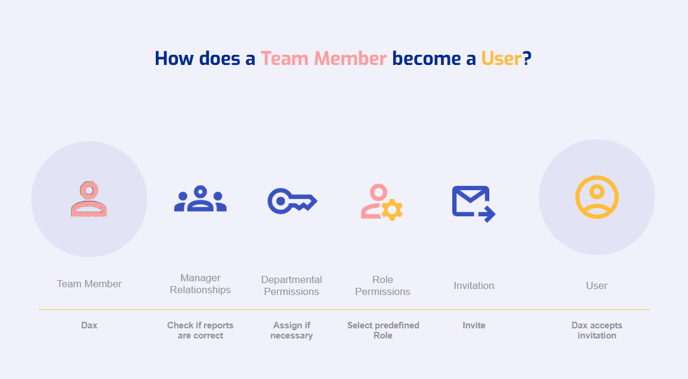
A team member becomes a user only once they are invited to the platform. This article will help you to invite a user.
What kind of roles we can find in your organization ?
For a smaller company this might be 1 person with full access to everything. For a larger company these roles might be split (eg HRBP, IT admin, HR Director) etc.
- Team Member: Has access to the different modules (e.g., Self-Scan, Conversations, Objectives), depending on the permissions granted. No access to administrative settings.
- Manager : Has access to team-related data and functionalities, such as Team Scan results, RDP, Conversations, and Objective tracking for their direct reports.
- Admin : Full access to all administrative functions, including user and role management, department structures, settings, and platform-wide configurations. Can assign roles and permissions to others.
- HRBP: Has extended access to HR-related modules (e.g., RDP, Team Scan, Succession Planning). Can view and support organizational development activities, usually across multiple teams or departments, but without full admin rights.
- IT: Limited access strictly to the Admin section for technical configuration (e.g., general settings, API integration). No access to functional modules like Team Scan, RDP, or any people-related data.
Define which parts of the platform the user has access to and what they can do:
- Custom to fit your organization’s needs
- Can have as many roles as necessary
- One role can be assigned to multiple users and one user can have multiple roles
Understanding Permissions Categories & Types
Permissions are divided into several categories :
- General : Includes core settings management, role creation, user management, and department-level access.
These permissions are typically assigned to Q7Leader administrators and, in some cases, to IT personnel roles (e.g., for API integration). - Team Scan, RDP, Objectives, Campaigns, Conversations, Self-Scan & Succession Planning : Grants access to the respective modules and the specific permissions associated with each.
Within these categories, you’ll find different types of permissions :
- Manage : Grants full control over the module in the Admin section, including configuration and structural settings.
- View: Allows the user to view content within the module but not make any changes or edits.
- Access : Grants visibility of the module in the left-hand navigation menu, enabling users to open it (often used in combination with view or edit rights)
- Create: Allows the user to add new content, such as entries, records, or items within the module.
- Publish: Grants the right to make content publicly visible or available to others — for example, publishing a campaign or finalized document.
- Lock : Provides the ability to lock content or settings, preventing further changes by other users, even those with edit rights.
Use this document to have an idea of what permissions you can give for each role.