![Variation=Brandmark, Color=WhiteVector.svg]](https://support.q7leader.com/hubfs/Variation=Brandmark%2c%20Color=WhiteVector.svg)
In this article you will learn how to:
- Send Invitations: How to invite users to the MyQ7Leader platform by using their email addresses.
- Assigning Roles: Selecting and assigning appropriate roles for the user type based on their responsibilities.
- Managing Departmental Permissions: Configuring access for heads of departments.
- Checking Pending Invitations: Monitoring which users have not yet accepted their invitations and managing those invitations.
Send Invitations
Before sending an invitation, make sure the Email column is visible:
- Go to the Team Members section
- Click on Column visibility
- Enable the Email column
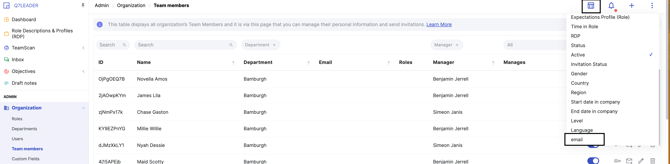
You will now be able to view and copy users’ email addresses.
To invite a user:
- Find the team member you want to invite
- Click the three-dot menu next to their name on the left and select Invite
- Enter or paste their email address
- Select their language
- Assign the appropriate role(s): Roles determine what the user will be able to see and do on the platform.
- Click Send
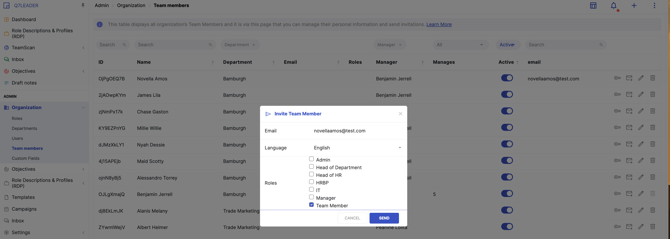
When inviting a user, you must assign at least one role.
- Select the role that matches their responsibilities (e.g., Manager)
- Available roles may vary depending on your organization
Filter by Role
If you want to invite specific users (e.g., only managers):
- Use filters or columns to identify relevant team members
- This is useful when inviting multiple users at once
Set Departmental Permissions
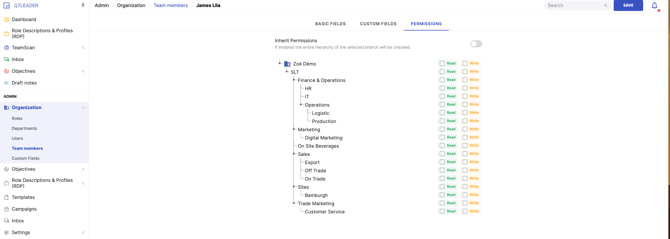
If the user needs access beyond their direct team:
- Click the three-dot menu next to their name on the left and select Permissions
- Select the relevant department(s)
- Define their level of access (only read or read&write access)
- Click Save
Example: You can allow a user to view an entire department while limiting edit permissions to their direct reports only.
This step is optional. By default, users will only see their direct reports.
After Sending the Invitation
- The user will receive an email invitation
- Once accepted, they will be able to log in
- Their roles and permissions will be applied automatically
Track Invitation Status
To check whether a user has accepted their invitation:
-
Go to Team Members
-
Add the Invitation Status column to your column visibility settings
-
You can then filter by status to view exactly what you need: Pending, Expired, Accepted, or No Invitation
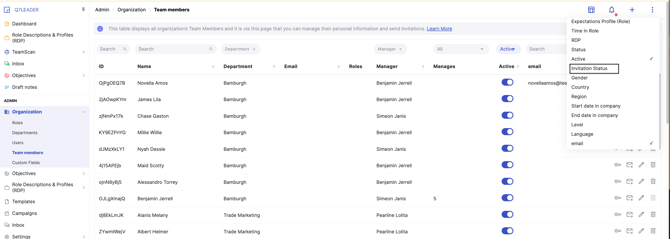
Status indicators:
- Two envelope icons → Invitation pending: Resend or cancel the invitation
- No envelope icon + roles displayed → Invitation accepted
- You can also filter by Pending to quickly see users who have not yet accepted.
Users Timestamps
Go to Admin > Organization > Users.
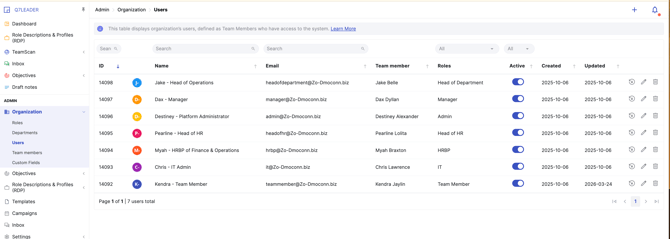
The Created and Updated columns show when a user account was created and when it was last updated.
This makes it easy to track who has accepted their invitation and when. Especially useful for identifying users when a submission reset is required.