![Variation=Brandmark, Color=WhiteVector.svg]](https://support.q7leader.com/hubfs/Variation=Brandmark%2c%20Color=WhiteVector.svg)
In this article, you will learn how to:
-
Create a new department within your organization
-
Edit an existing department
-
Delete a department
-
Manage access permissions for departments
Departments should be organized in a hierarchical structure that reflects your organization’s real reporting lines (for example: Company → Division → Department → Team).
This structure is important because it allows permissions and access rights to be managed efficiently.
A well-defined hierarchy ensures that permissions flow logically through your organization, saving time and reducing the risk of access errors.
How to create a new departement
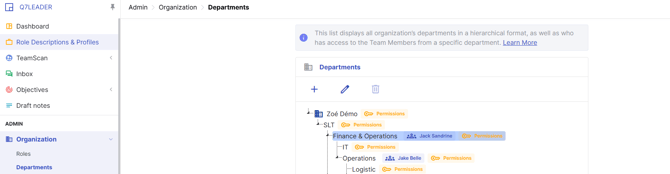
In Organization and Admin, go to Departments.
First, select the parent department to which you want to link your sub-department and click on the "+" Icon at the top.
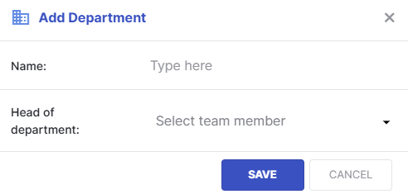
Enter the department name, then click Save to confirm.
You can also assign a Head of Department.
Note: Assigning a Head of Department is for visualization purposes only, in this page only. No departmental permissions are automatically given to this person.
When you add a new department, it’s automatically nested under the parent (in the small arrow next to the parent department’s name) and must be manually expanded if it’s not visible.
How to edit a department
Select the department you want to edit, then click the pencil icon to update its information.
You can change the department’s name or the head of the department.
How to delete a department
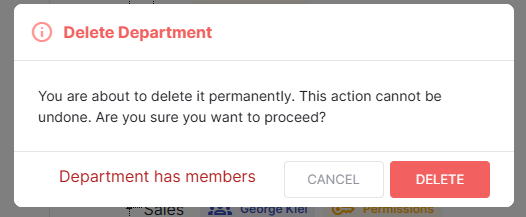
Select the department you want to delete, then click the trash icon.
Note: A department can only be deleted after all associated members have been unlinked.
To unlink or change a team member's department, go to the Team Member’s profile and update the department there.
Follow this guide to manage your team members’ information.
In Team Member, you can filter by this department, but remember to include inactive team members, who aren’t visible by default. Sometimes, when someone is deactivated, their department isn’t removed, which can cause issues if you ever need to delete that department.
How to manage your departmental permissions
No one gets automatic access to newly created departments. Even someone like the Head of HR, who has org-wide access, must have permissions updated individually.
Departmental permissions are granular, allowing different read and edit rights for different people, or the ability to restrict access to certain branches.
Because this data is sensitive, permissions must be managed carefully and assigned manually.
Within the department, you can grant permissions associated with it.
Click the key 'Permissions' icon next to the department name.

Click the + icon to add a member permission.
Use the pencil or trash icon to edit or delete a permission.
Refer to this guide for more information on departmental permissions.