![Variation=Brandmark, Color=WhiteVector.svg]](https://support.q7leader.com/hubfs/Variation=Brandmark%2c%20Color=WhiteVector.svg)
You may need to unassign RDPs from a large number of people. Instead of doing this manually, we recommend using the import process.
Unassigning RDPs is particularly useful when you want to clean up your RDP Library. Please note that an RDP can only be deleted from the library if it is not assigned to anyone - including inactive Team Members.
To unassign RDPs via import, update your import file by removing the RDP ID(s) for the relevant individuals, then re-import the file into the system.
During the import, the empty RDP field will be interpreted as an unassignment for those Team Members.
Step 1: Download your Team Members list
-
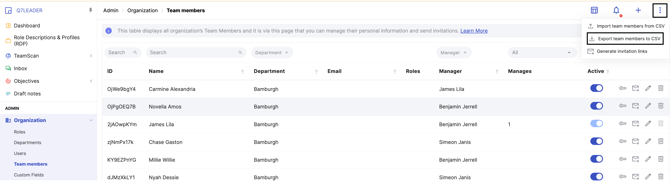
Go to Admin > Organization > Team Members.
-
Click the three dots in the top-right corner of the screen and select Export Team Members to CSV.
-
Once you open the file, convert it to Excel format so you can work with the data more easily. To do this, please follow this article.
Step 2: Download your RDP Library
-
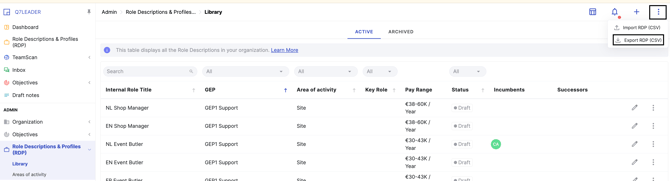
Go to Admin > Role Descriptions and Profiles > Library.
-
Click the three dots in the top-right corner of the screen and select Export RDP (CSV).
-
Once you open the file, convert it to Excel format so you can work with the data more easily. To do this, please follow this article.
Step 3: Merge your two files in one file.
Merge both exports into a single working file. Use 2 sheets: one with Team Members and one with RDPs.
Step 4: Add the RDP IDs to the Team Members sheet
-
To unassign the RDPs, you’ll need to include the RDP ID information in your import file.
-
First, add a new column in your Team Members sheet for the RDP IDs.
-
Then, in this new column, use a formula to retrieve the corresponding RDP ID from your RDP Library sheet.
-
Once you have retrieved all the RDP IDs, copy the entire column and paste it back as values only to remove the formulas and keep just the final data.
Step 5: Delete the RDP IDs for the team members you want to unassign
-
In the RDP IDs column, delete the cells for all team members whose RDPs you want to unassign.
-
Keep the RDP IDs only for the team members whose RDPs should remain assigned.
Step 6: Prepare your file for import
Once your file is ready, keep only the following columns:
-
Team Member ID
-
Time in Role
-
RDP ID
Delete all other columns before proceeding.
Step 7: Convert your file to CSV format
Download the file in Comma Separated Values (.csv) format.
For Excel users, select CSV UTF-8 (Comma delimited) (.csv).
-
Google Sheets: Go to File → Download → Comma Separated Values (.csv)
-
Excel: Make sure your system is set to use commas (,) as the delimiter, not semicolons (;). Refer to the relevant configuration article if needed before saving your file.
Step 8: Upload your file to the platform
-
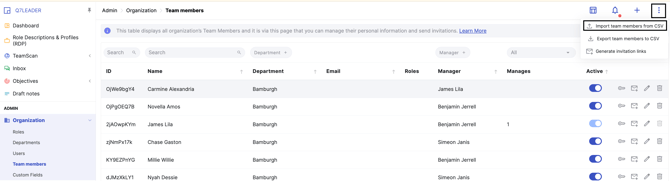
Once your file is saved in the correct format, go to the Team Members section.
-
Click the three dots in the top-right corner to start the import process.
-
Then click “Import Team Members from CSV.”
-
You’ll then be prompted to upload your file.