![Variation=Brandmark, Color=WhiteVector.svg]](https://support.q7leader.com/hubfs/Variation=Brandmark%2c%20Color=WhiteVector.svg)
In this article, you will learn how to:
-
Prepare your file correctly
-
Verify your data
-
Import the data into the platform
Once your RDP library is ready and your RDPs are published, you can use an import file to assign them to all your team members. This allows you to perform batch assignments without direclty affecting the Time in Role.
Prepare your import file
Use this file as a reference to understand the required formats for importing data.
Create an RDP import file by export the required data:
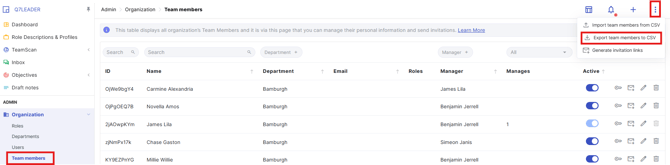
- Export the Team Members from the Team Members Section.
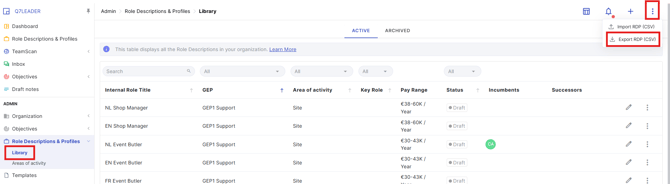
- Export the RDPs from the RDPs Library.
- Convert the data into Excel format or use Google Sheets. Please refer to this article for more information.
- Merge both exports into a single working file. Use 2 sheets: one with Team Members and one with RDPs.
Associate each Role Title with an RDP:
-
Add an RDP ID column to the Team Members sheet.
-
Use a formula to check whether the currently assigned role title (the Role Title column in the Team Members sheet) exists in the RDP sheet.
-
If it does, map the RDP ID using a lookup formula. If not, manually find and assign the correct internal role title from the RDP sheet.
-
Once completed, all team members will have an RDP ID assigned.
Date formatting:
- Convert the Time in role date column to the YYYY-MM-DD format.
Add an “RDP GEP” column:
- In the Team Members sheet, add an additional column to retrieve the GEP levels of the RDPs.
- Use an XLOOKUP formula to display the RDP GEP as soon as the RDP is assigned to a team member.
GEP consistency check:
Please cross-check that all currently assigned Expectation Profiles match the RDP GEPs.
Otherwise, when an RDP is assigned, that GEP will be taken into account.
Import the file into the Platform
Once your file is ready and the data has been verified, especially the GEP level, you can proceed to convert it for import into the platform.
The file needs to be uploaded twice, using the same columns and the same data.
- The first upload links the RDPs and assigns Time in Role using today’s date (regardless of the date in the file).
- The second upload then updates the Time in Role based on the file.
Prepare your file as follows:
- Remove any team members who do not have an RDP ID. Rows without an RDP ID should be deleted.
- Keep only the following columns: Team Member ID, Time in Role and RDP ID.
Download the file in Comma Separated Values (.csv) format (for Excel users - csv UTF-8):
-
Google Sheets: Go to File → Download → Comma Separated Values (.csv)
-
Excel: Ensure your system is configured to use commas (
,) as the delimiter, not semicolons (;). Refer to this article to configure your laptop before downloading.
Import your file in the myQ7Leader:
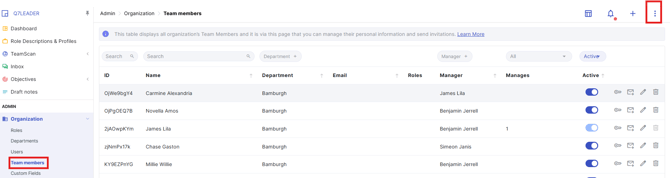
- Once your file is ready and saved in the correct format, go to the Team Members section.
- Then click the three dots in the top-right corner.
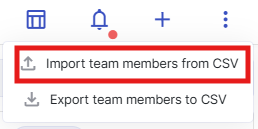
- Then click “Import Team Members from CSV.”
- You’ll then be prompted to upload your files. Upload the first file to import the RDPs, and the second file to import the Time in Role.