![Variation=Brandmark, Color=WhiteVector.svg]](https://support.q7leader.com/hubfs/Variation=Brandmark%2c%20Color=WhiteVector.svg)
Key Features:
- Manage the Overview: Add Colums and Filters
- Start a New Conversation via the Campaign or as a Manager
- Conversation Submission Flow
The Conversations module in MyQ7Leader is designed to support meaningful 1-2-1 discussions between Managers and Team Members. Used for mid-year, end-of-year, or quarterly reviews, it brings structure, transparency, and alignment to the review process.
Key Benefits of Conversations :
- Structured Dialogue: Covers key topics in a clear sequence.
- Transparency: Accessible to team member, manager, and HR.
- Campaign Integration: Easily scheduled as part of Campaigns.
- Objectives Integration: Set and track goals directly within the review.
This structured, user-friendly tool supports open dialogue and aligns on future goals, making it a powerful feature for effective team development.
Overview
When you log in to MyQ7Leader, go to the Inbox module, you will then arrive on the Overview.
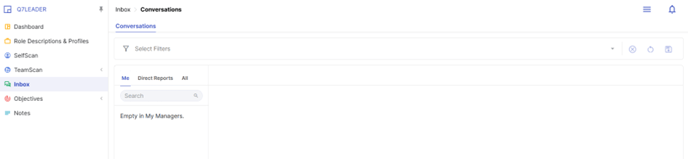
You will see that you can now switch between three different views from the left sidebar :
- Me: View only your own Conversation (default).
- Direct Reports: View Conversations of your direct reports.
- All: View Conversations of everyone you have permission to see (based on departmental permissions).
Conversations are shown in a customizable table view:
- Sortable columns by name, with the possibility to add/remove columns. Click on the icon on the right and choose what information you want to add in the overview.
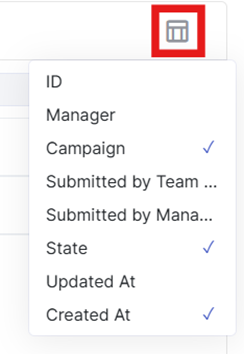
- Filters are available above each column to help you find conversations quickly.

Start a New Conversation
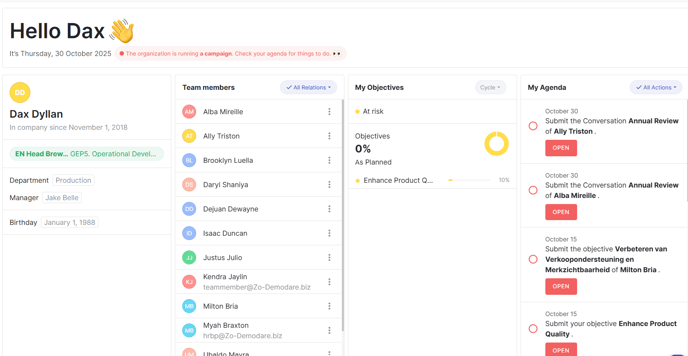
If your organization is currently running a Conversations Campaign, you’ll see a new action item in your Agenda that takes you directly to your conversation. You can also find the same conversation in your Inbox.
This applies to both Managers and Team Members — when the campaign starts, each will receive:
-
An action item in their Agenda, and
-
An email notification with a direct link to the conversation.
Starting a new conversation outside of a campaign:
Note: Only Managers can start a New Conversation - Team Members do not have this permission.
To start a Conversation:
-
Click on the Team Member you want to start the conversation with.
-
Select “New Conversation.”
-
Choose the appropriate Template, then click “Start.”
Next, complete all the required fields in the form. Fields marked with an asterisk (*) are mandatory - you will not be able to submit the form until all required fields are correctly filled in.
As a Manager, you have the option to create your own Conversation Templates, which are visible only to you.
For example, you can create a custom template for your weekly 1:1 meetings with your Team Members.
Conversation Submission Flow
The Conversation goes through a clear submission process :
- Saved : The Conversation has been created - whether it was started by the Manager or automatically generated as part of a campaign. While in this state, the conversation is shared between both parties (the Manager and the Team Member) and remains accessible to both.
- Submitted by Member : The Team Member clicked on Submit button to approve the content of the Conversation.
- Submitted by Manager : The Manager submitted the Conversation.
- Signed Off : Both the Manager and the Team Member have submitted the Conversation. It is considered finalized and valid, and it's automatically locked.
If the Conversation includes an “Objectives” field type, all related objectives are also automatically submitted by both parties and locked.
If any changes are made after one party's submission, the Conversation will reopen and require the other party to submit again.
Objectives in the Conversation
This conversation is linked to specific objectives of the Team Member. When the Conversation is finalized (submitted by both parties):
-
The system takes a snapshot of the most current status of all linked objectives.
-
These objectives are then automatically submitted and locked to preserve their state.
-
This snapshot is permanently saved and linked to the Conversation.