![Variation=Brandmark, Color=WhiteVector.svg]](https://support.q7leader.com/hubfs/Variation=Brandmark%2c%20Color=WhiteVector.svg)
In this article you will learn:
- How to Add and Edit a Role
- How to Manage Permissions
To better understand Roles & Permissions in myQ7Leader, check out this guide.
How to Manage Roles
Accessing the Admin Dashboard
To begin managing roles, you will first need to access the Admin section from the main dashboard.
Navigate to the sidebar and select Admin from the list of options. This will take you to the Admin dashboard where you can manage various settings, including roles.
Adding a New Role
- Click on the Roles section under Admin on the sidebar to view the current roles.
- To add a new role, click the plus (+) icon located at the top right of the roles table.
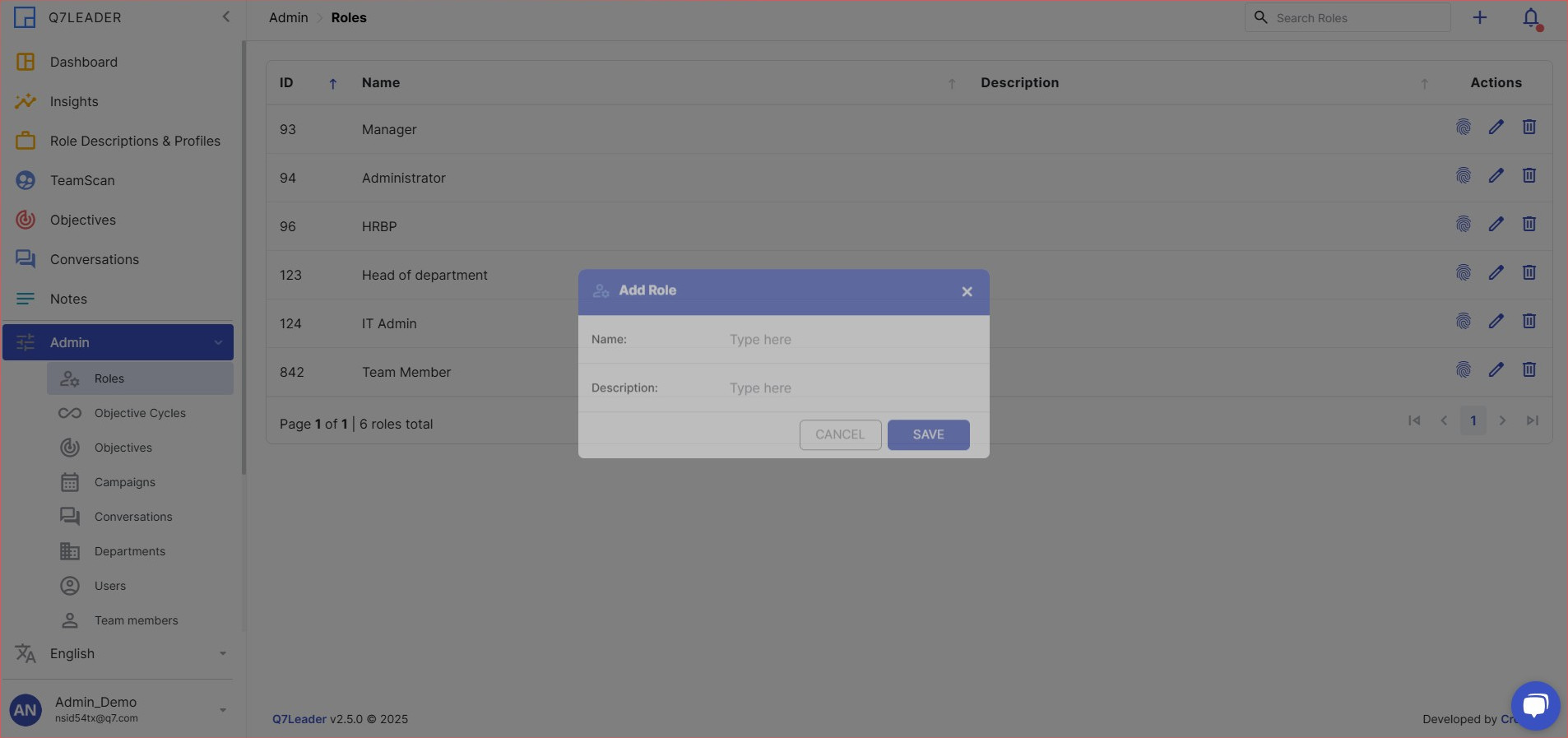
- In the "Add Role" dialog box, enter the name and description of the new role. Once done, click Save to create the role.
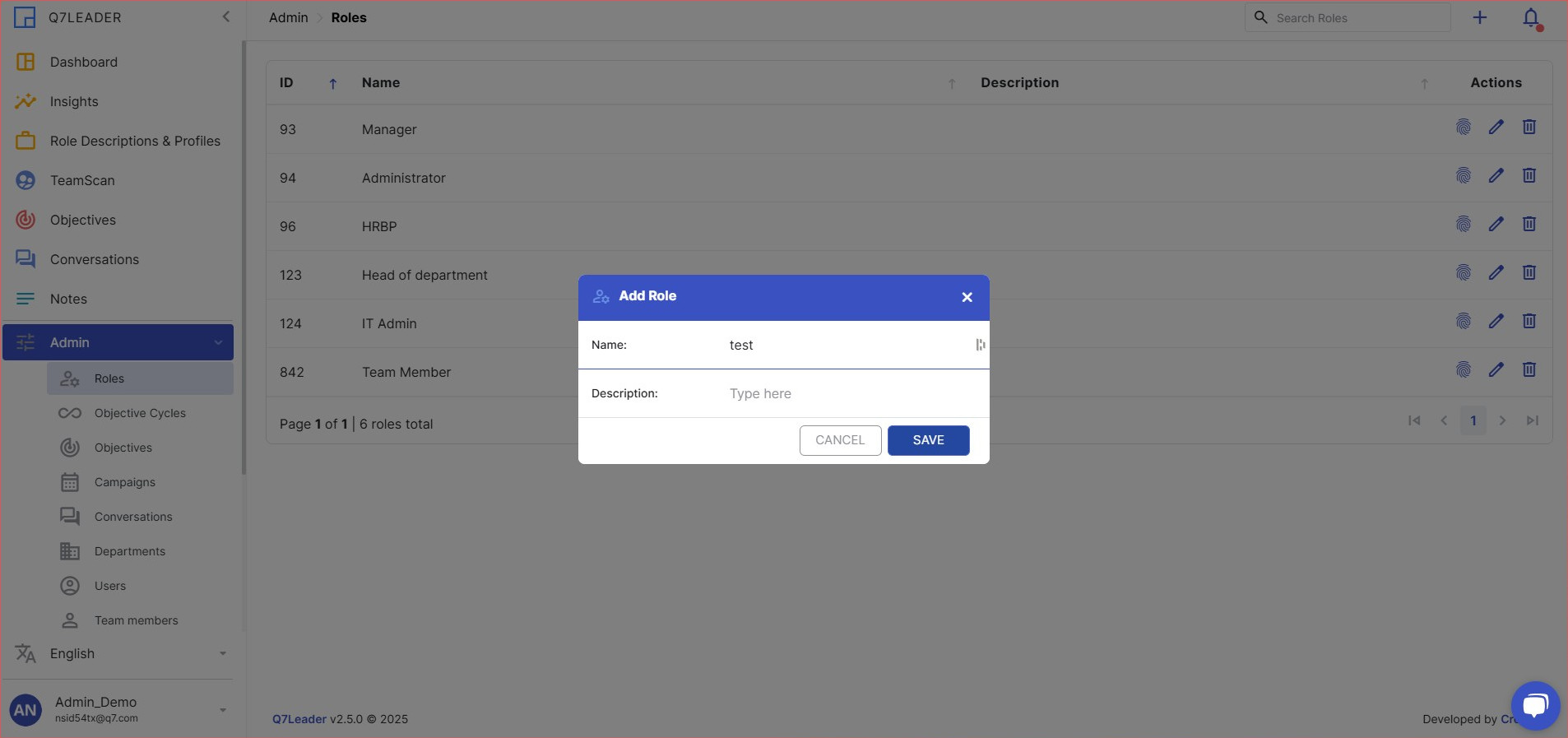
Editing the name and description of an existing Role
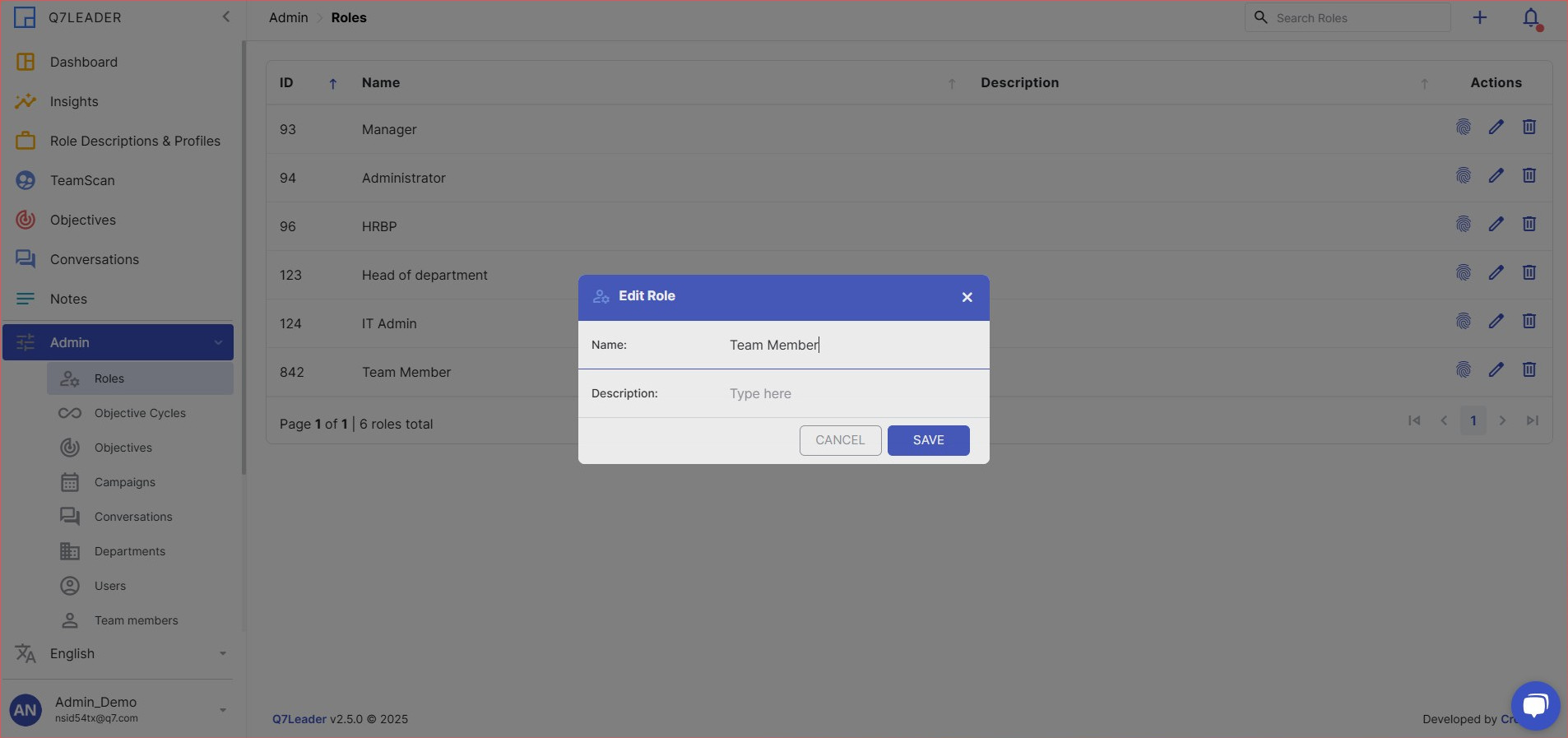
- In the Roles section, locate the role you wish to edit. Click the pencil icon in the Actions column next to the role name.
- Update the role details in the "Edit Role" dialog box that appears. After making the necessary changes, click Save to apply the updates.
How to Manage Permissions
- To add or modify permissions for a specific role, click the fingerprint icon in the Actions column next to the role name.
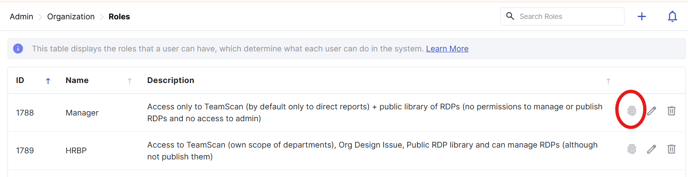
- This action will open the "Role Permissions" page for the selected role.
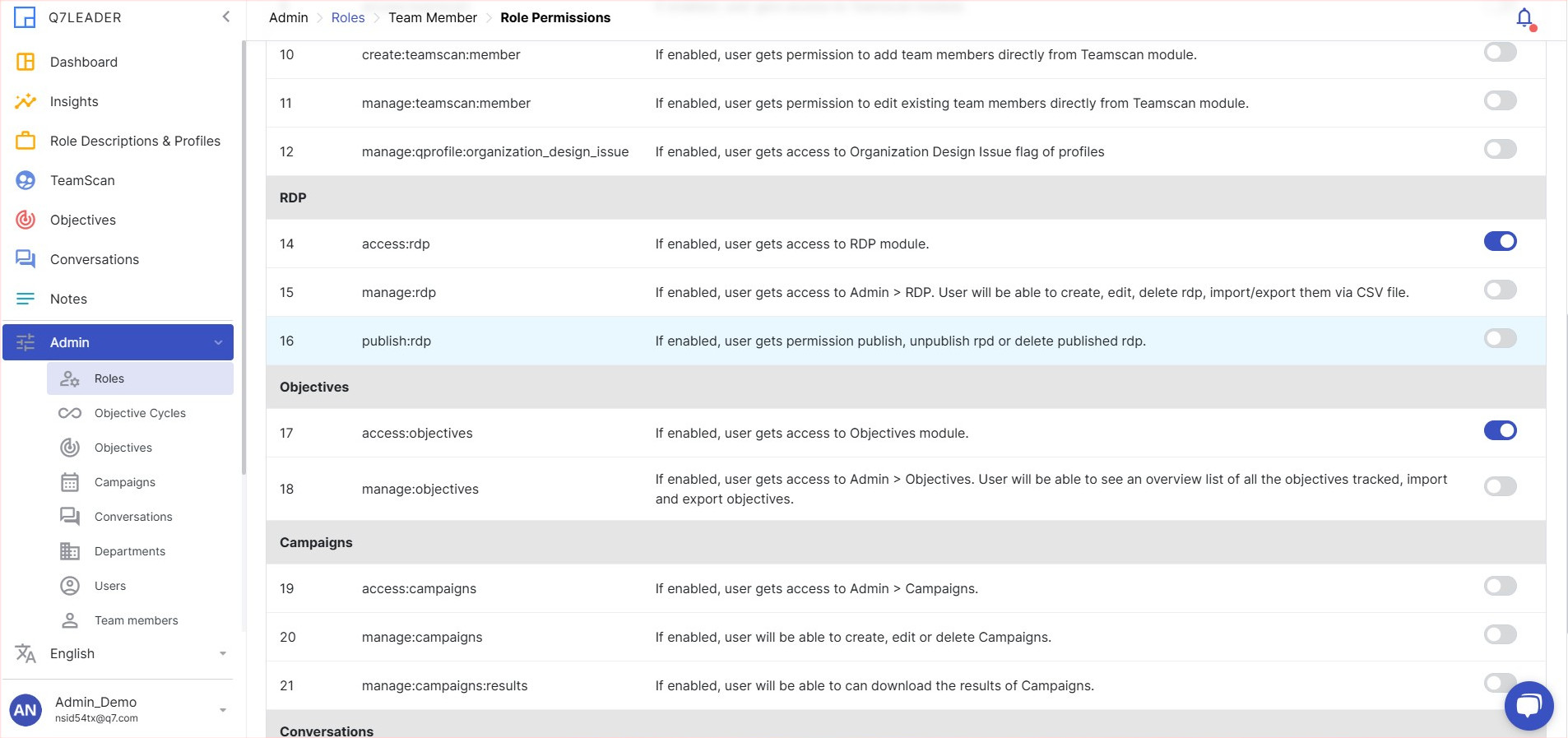
- Toggle the permissions on or off according to the necessary access levels for your application. Ensure that each permission is carefully reviewed to maintain security and functionality.
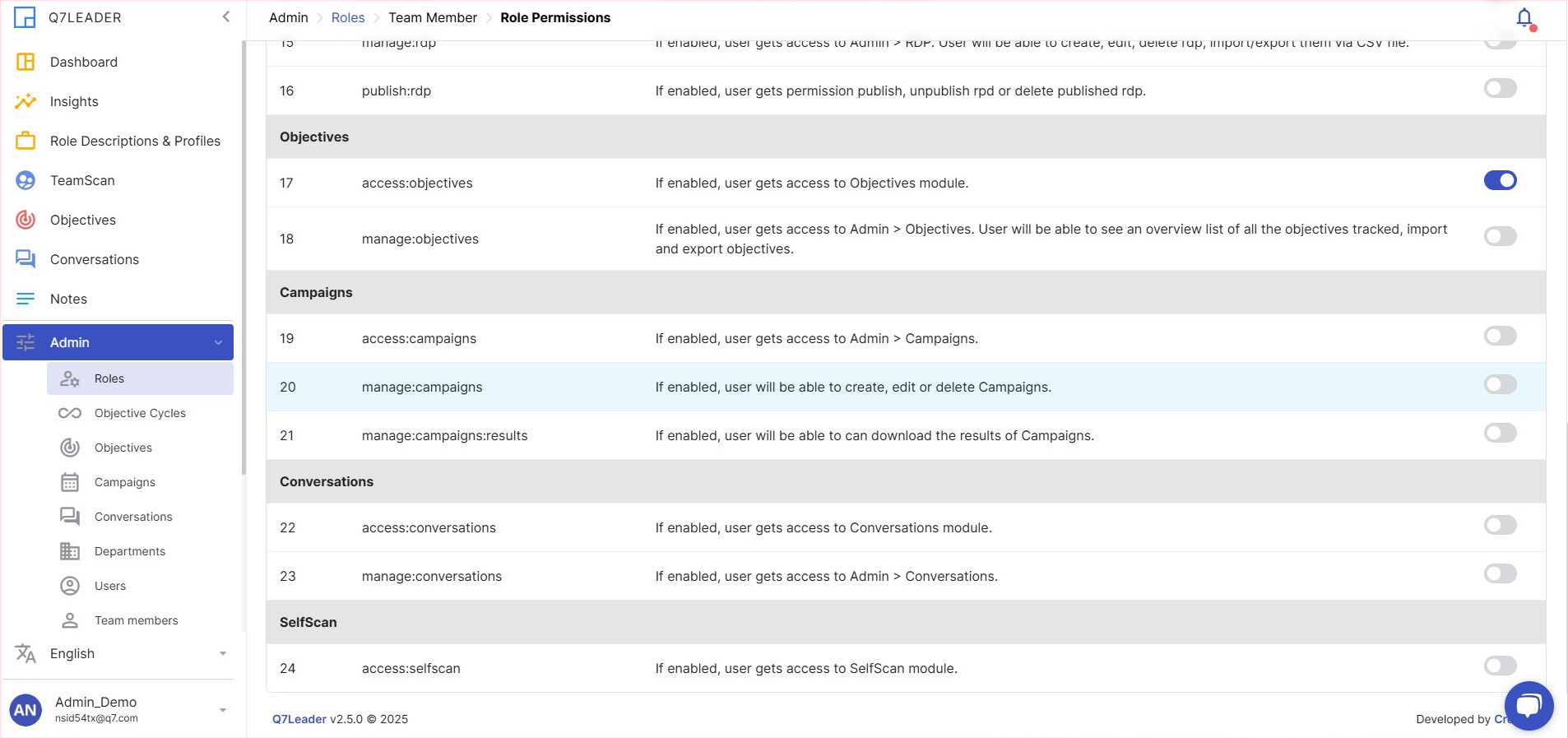
TIP: if you have access to the feature and you want to test it thoroughly, create a unique test role, assign it to yourself and see what the impact of each toggle is.
Finalizing Role Management
After managing roles and permissions, always double-check to ensure that all settings align with your organizational needs and security policies. Keeping records of changes made can be useful for auditing purposes and in ensuring responsible permission allocation. By following these steps, you will be able to efficiently manage roles within your application, facilitating smoother operations and more secure access controls.