![Variation=Brandmark, Color=WhiteVector.svg]](https://support.q7leader.com/hubfs/Variation=Brandmark%2c%20Color=WhiteVector.svg)
In this article, you will learn:
- What are Departmental Permissions
- How to Manage Departmental Permissions
What are Departmental Permissions
Specific departmental permissions are not required for users with the Manager role, as they are granted access to their direct reports by default when designated as a “Manager” in the team member’s profile.
These permissions restrict the visibility to the appropriate departments within the organizational scope.
Departmental access rights should be configured when a broader view across multiple departments is necessary.
How to Manage Departmental Permissions
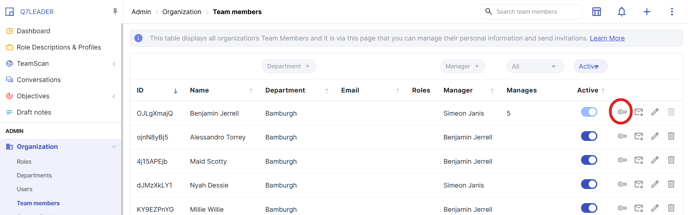
You can manage departmental permissions by navigating to the Admin section, then selecting "Organization" and "Team Members".
From there, go to the team member’s name and click the key icon located to the right of their name to access their permission settings.
You will arrive on your departmental structure:
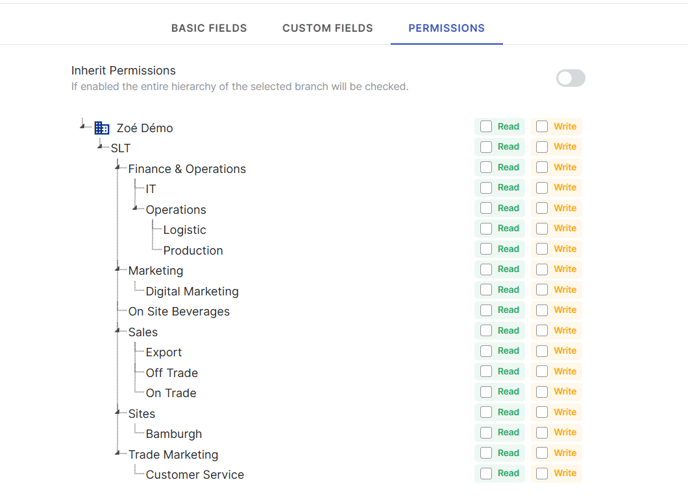
If you enable "Inherit Permissions", all subdivisions of the selected department will automatically inherit the same permissions.
For example, if you enable permissions for the "Finance & Operations" department, its sub-departments — such as IT, Operations, and Logistics & Production — will also be included.
Difference between "Read" and "Write" permissions:
-
Read: Grants view-only access. The user can see the information but cannot make changes.
-
Write: Grants editing access. The user can view and modify the information.
-
You can select either one or both options, depending on the level of access you want to provide.
Don't forget to click on "Save" when you make any change.
How to easily check your Departmental Permissions
Go to the Admin section, then click on "Departments". You will then see your organizational department structure.
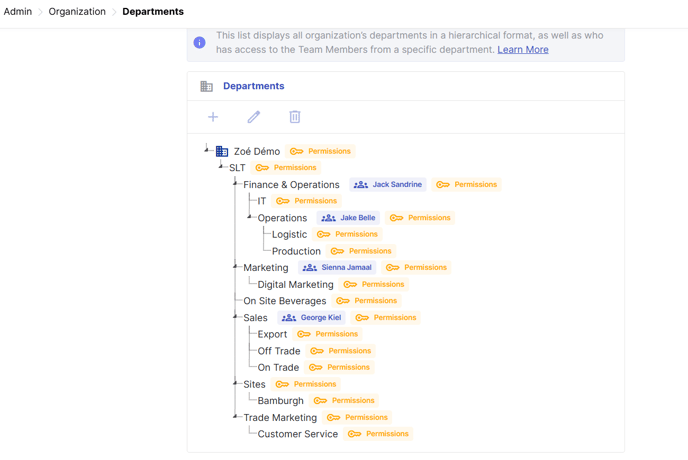
To review the permissions you've assigned, click the "Permissions" icon next to the department name.
This will display a list of all current access rights for the department. From here, you can also manage permissions by clicking the edit (pen) or delete (trash) icon.

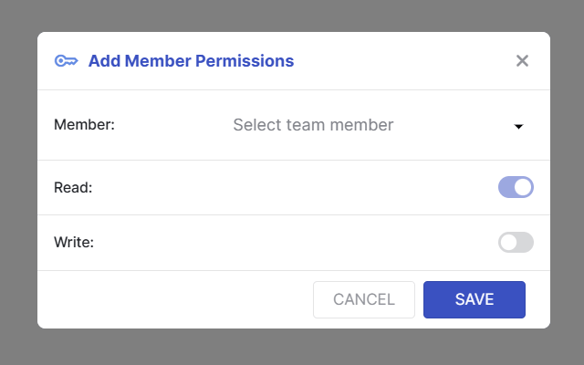
You can also add a new permission for this department by clicking the “+” icon at the top right corner.

Select the team member for whom you want to assign permissions, then click "Save".
Departmental permissions are always linked to the role assigned to the team member.
If you need more information about roles and permissions, please refer to this guide.