![Variation=Brandmark, Color=WhiteVector.svg]](https://support.q7leader.com/hubfs/Variation=Brandmark%2c%20Color=WhiteVector.svg)
In this article, you will learn how to:
-
Enable or disable the setting for managing objectives by cycles
-
Create a new objective cycle
-
Archive an objective cycle
Enable or disable the setting for managing objectives by cycles
- When this setting is activated, users have the option select a cycle when creating new objectives, ensuring that each objective is linked to the appropriate time frame.
- When deactivated, objectives can be created independently of cycles, offering greater flexibility for organizations that prefer continuous or ongoing goal management.
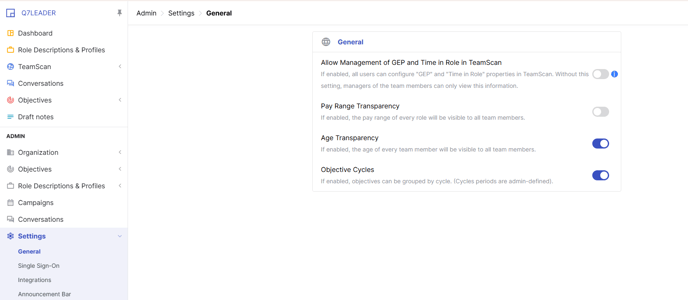
To activate or deactivate this setting, navigate to the Administration section, then open Settings.
Under the General tab, you can enable or disable the Objective Cycles option.
Create a new objective cycle
To create a new cycle, navigate to the Administration section and open the Objectives module. Under Cycles, you can view and manage all existing cycles.
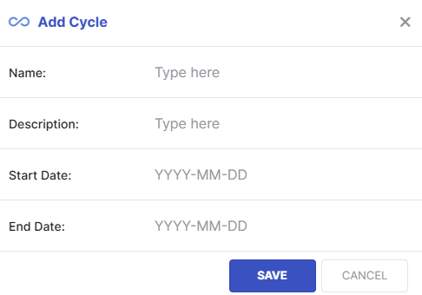
To add a new cycle, click the “+” button in the top-right corner.

Next, provide the necessary information for your new cycle.
Once your cycle is created, you can still edit or delete it using the buttons on the right side of the line.

Archive your outdated cycles
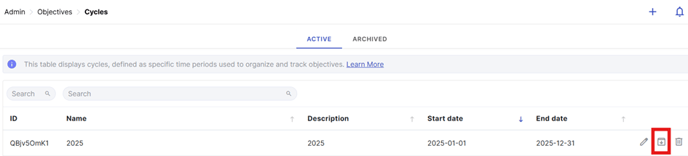
To maintain a clear and organized front-end view, HR should manually archive any outdated cycles. Archiving a cycle hides its associated objectives from users, minimizing potential confusion.
Archiving the cycle will also hide any related pending agenda items, including those linked to unapproved objectives.
In the Cycles section, you can archive a cycle by clicking the icon on the right of the corresponding cycle.
Once archived, it will be available in the “Archived” section at the top.