![Variation=Brandmark, Color=WhiteVector.svg]](https://support.q7leader.com/hubfs/Variation=Brandmark%2c%20Color=WhiteVector.svg)
Key Features:
- Manage the View
- Conversations States & Submission Flow
- Reset Conversations Submissions
- Exporting Conversations
Overview
In the Administration section, under the Inbox module, you’ll find an overview of all conversations within your organization.
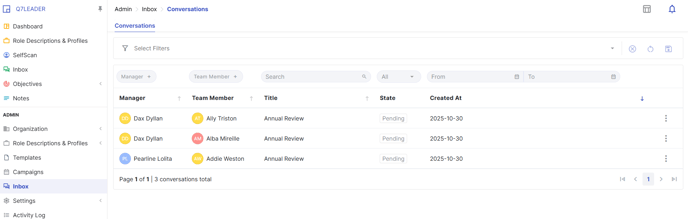
You can use filters and colums to manage the view and make it clearer.
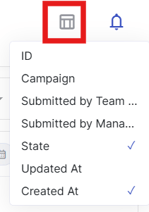
- Conversations are shown in a customizable table view. Click on the icon at right and choose what information you want to add in the overview.
- Filters are available above each column to help you find specific conversations quickly.
Conversations States & Submission Flow
In the overview, you can easily view the states of each conversation.
The states indicate the current stage or progress of the conversation flow:
- Pending: The conversation is still awaiting submission from either the Manager or the Team Member, or both.
- Signed-Off: The conversation has been submitted and completed by both the Manager and the Team Member.
The Conversation goes through a clear submission process :
- Saved : The Conversation has been created - whether it was started by the Manager or automatically generated as part of a campaign. While in this state, the conversation is shared between both parties (the Manager and the Team Member) and remains fully accessible to both.
- Submitted by Member : The Team Member clicked on Submit button to approve the content of the conversation.
- Submitted by Manager : The Manager submitted the conversation.
- Signed Off : Both the Manager and the Team Member have submitted the Conversation. It is considered finalized and valid, and it's automatically locked.
If the conversation includes an “Objectives” field type, all related objectives are also automatically submitted by both parties and locked.
In some cases, you may notice that for the same team member, certain conversations display a status of Pending, while others show N/A.
This occurs when the team member did not have an active user account at the time the objective or conversation was created.
-
Because there was no user assigned at the time of creation, the system cannot yet allow submission of that objective or conversation.
-
Once the user account is created, the status does not automatically update to “Pending”.
The objective or conversation remains in N/A status because it was linked to a non-existent user when it was first generated.
Technically, the system cannot automatically reset its status once the user is later created.
How to fix it
To correct this, you need to manually reset the submissions on the affected conversations.(see below in this article how to reset submissions)
After submissions are reset, the status will change from N/A to Pending, allowing the new user to take action.
How to Reset Submissions
Resetting submissions means that the conversation data will remain intact, but all submissions from both Managers and Team Members will be cleared. After a reset, everyone will need to resubmit the form through the Submission Flow.
- To reset Submissions, go to Admin>Inbox and click the three-dot icon at the right end of the row of the conversation you wish to reset, then select 'Reset Submissions'.

-
Conversations are only editable by the Manager and the Team Member.
-
When part of a Campaign, conversations are automatically created on day 1 of the campaign, at 2am CET.
-
If a Team Member joins after the campaign launch, the Manager must manually create the conversation for them.
-
If the Manager changes, the conversation remains with the former Manager - a new conversation must be started with the new one.
How to Export Conversations
- You can export a PDF of a single conversation by clicking the three dots on the right side of the line.
- Exporting all your conversations in full is only available through the Campaigns section, where you can download the data in CSV format.