![Variation=Brandmark, Color=WhiteVector.svg]](https://support.q7leader.com/hubfs/Variation=Brandmark%2c%20Color=WhiteVector.svg)
The Template Builder gives you full control over how conversations are structured. It allows you to create, duplicate, edit, and delete templates that can be used across campaigns or personalized for specific purposes.
By using templates, you can ensure that every conversation, whether it’s a performance review, coaching session, or 1:1 meeting follows a clear and consistent structure.
Key Features
- Permissions to the Templates
- Use Q7Leader Templates
-
Create your own Templates
-
Duplicate existing Templates to reuse or adapt content
-
Delete drafts that are no longer needed
Permissions to create Templates
First, make sure that the necessary permissions are enabled for your role.
Go to the Roles section, open your role’s permissions, and verify that this setting is enabled:

-
Only Administrators can create or edit templates that are visible to the entire organization.
-
Managers can create their own templates by default, which are visible only to them (and are not afected by this permission).
-
Team Members do not have permission to create or publish templates.
Starting from a Q7Leader Template
Q7Leader provides a set of Templates within the Conversations module. These templates are designed to serve as a foundation and can easily be duplicated and personalized to match your organization’s specific needs, tone, and processes.
When in the Templates module, you will see the Q7Leader templates with "Q7Leader" listed as the source.
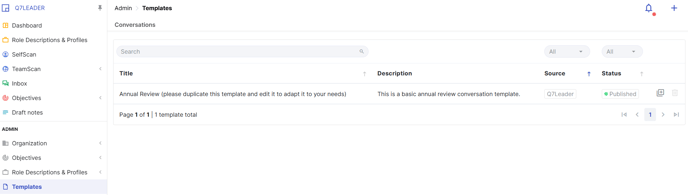
Click the duplicate icon at the end of the line to duplicate it and begin editing.
Note that any Q7Leader template containing objectives fields will require an additional setup step by your HR team after duplication.
This is because objectives in the Q7Leader template cannot be automatically linked to objectives cycles, as each client will have different cycle dates. Ensuring this setup is done correctly will make sure your templates work seamlessly with your internal processes.
Create your own Template
When building your customized template in MyQ7Leader, consider these preparatory steps:
-
Define the Purpose: Identify the goal of the template (e.g., performance review, coaching, feedback session) and the expected outcomes.
-
Choose Key Themes: Select 3–5 main themes to organize your conversation, such as Performance, Strengths, Career Development, or Feedback.
-
Draft Questions: You can combine open-ended questions that encourage reflection and discussion and closed-ended questions that could help your organization gain quick insights on particular topics.
-
Structure the Conversation: Organize your template into logical sections.
1. Go to Administration → Templates. Click the “+” icon in the top-right corner.
Select either the Basic Builder or Advanced Builder.
- Basic Builder: Ideal for quick, simple templates. Create a one-page structure in minutes using standard input controls.
- Advanced Builder: Suitable for complex, logic-driven templates. Includes a multi-page set up and conditional logic control.
2. Add the required sections and fields. (Fields marked with an asterisk (*) will become mandatory)
Add Sections: Organize your template by theme or discussion topic.
Add Fields:
- Basic: Standard text, number, or multiple choice fields.
- Logic: Conditional or rule-based fields. (only on advanced builder)
- Q7Leader: Advanced data fields for leadership-related insights. (for example: you can integreate objectives, RDPs or any TeamScan dimension...)
You can preview your template at any time by selecting the eye icon.
3. Once your structure is complete, you can preview, save as draft, or publish your template for campaign use.
Tip: Test your template with a sample conversation or role-play. Refine your questions for clarity, flow, and relevance.
Duplicating an Existing Template
If you’d like to reuse a template but make a few adjustments:
-
Go to the Templates Overview.
-
Click the duplicate icon next to the template you wish to copy.
-
Edit the duplicated version as needed and save or publish it.
This is useful for creating variations of templates (e.g., different departments or conversation types).
- Name your templates thoughtfully
Choose a name that reflects how you’d like your conversation or campaign to appear later. For example, avoid adding words like “template” in the title — the template name will automatically be used for campaign-generated tasks.
- Use one template per campaign
Use one template per campaign and keep it specific to that campaign. To stay organized, include the year or review period in the template name (e.g., Performance Review 2025). Remember that templates, especially those with objectives, are tied to specific objectives cycles, so if you reuse one for a new campaign, you’ll need to update the associated cycles. - Templates that are meant to be used continuously outside of a campaign don't need to be duplicated necessarily.
Deleting a Template
It’s always possible to delete a template from your organization, except for templates provided by Q7Leader, which cannot be deleted.
To delete a Template:
-
Go to the Templates Overview.
-
Click the trash icon beside the template you want to remove.
Best Practices
-
Keep your templates simple and focused.
-
Use consistent language and structure across all templates.
-
Regularly review templates to ensure they align with current organizational goals.
-
Encourage feedback from Managers and Team Members who use them.