![Variation=Brandmark, Color=WhiteVector.svg]](https://support.q7leader.com/hubfs/Variation=Brandmark%2c%20Color=WhiteVector.svg)
In this guide, you will find information on:
-
What campaigns are used for
-
How to create a new campaign
-
How to track the progress of your campaigns
Campaigns are a powerful tool to streamline HR processes like TeamScan, SelfScan, and Conversations. With Campaigns, HR can activate multiple modules with set start and end dates, assign participants, and track progress in real time.
Campaigns make it easy to monitor task completion, export reports, and manage participation by departments or individuals.
Once set up, HR can efficiently track who has completed tasks, helping to ensure accountability.
When a campaign ends, you will be able to export a full csv report of all content of the conversations as well as all objectives within those conversations and profilescans.
Benefits of Campaigns
- Request ProfileScans, SelfScans, and Conversations inside MyQ7Leader
- Follow up made easy with statuses per participant per module
- Snapshot of submitted Scans, locked after campaign ends
- Reporting and Exports of TeamScan and Conversations (csv)
Creating a Campaign
Step 1: Log In
Log into Q7 Leader and navigate to the Admin and Campaigns Section.
Only HR and authorized users can create and manage campaigns.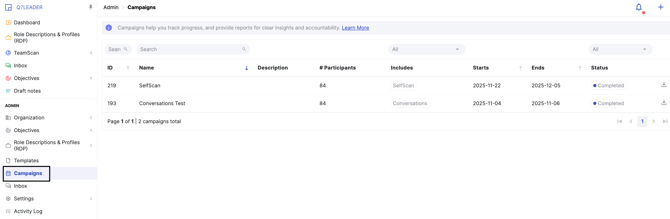
Step 2: Create a New Campaign
-
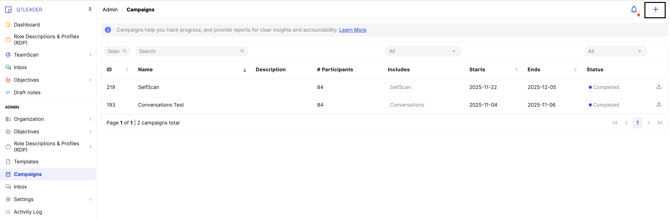
Click the “+” icon to create a campaign.
-
Give your campaign a clear and recognizable name.
The campaign name directly affects how the email appears to recipients. Since it becomes the email key, it should include the word ‘campaign’ for clarity.
For example: Talent Cycle 2026 Campaign.
-
You can also add a description to provide additional context: this step is optional but recommended for clarity.
-
Finally, define the campaign’s overall start and end dates. These dates will determine the active period of the campaign and should align with the timeline of your selected modules.

Step 3: Select Modules
You can enable:
-
TeamScan
-
SelfScan
-
Conversations
Enable the modules you need for your workflow.
Step 4: Set Module Dates
Each module can have its own start and end dates, allowing you to structure the workflow in phases.
However, all module dates must fall within the overall campaign start and end dates.
Example setup:
| Module | Start Date | End Date |
|---|---|---|
| TeamScan | Nov 1 | Nov 30 |
| SelfScan | Nov 1 | Nov 30 |
| Conversations | Dec 1 | Dec 20 |
The overall campaign dates will:
-
Start with the earliest module
-
End with the latest module
Two Important Things to Know About Setting Dates
-
TeamScan Module
Make sure the end date is set after all DOT meetings have been completed.
If a TeamScan needs to be adjusted during a DOT meeting and the campaign has already closed, you will no longer be able to modify the TeamScan. Setting the correct end date ensures flexibility for final updates and discussions.
-
Conversations Module
To ensure Conversations are generated correctly, the campaign must be createdset up before the scheduled start date of the Conversations module.
If the campaign is created on the intended start date, the Conversations will not be generated as expected. Refer to this article for more information.
Step 5: Add Participants
You have multiple ways to add participants:
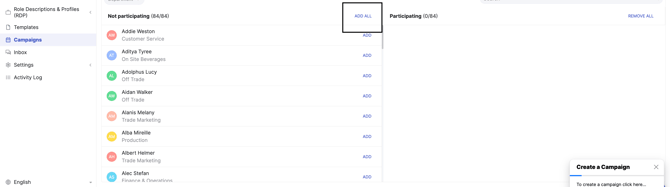
Option 1: Add Entire Company
Click “Add All”.
Option 2: Add by Department
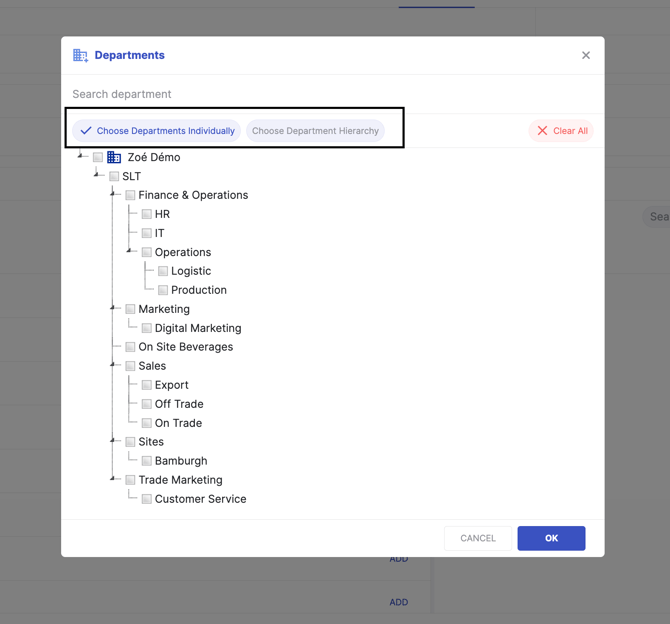
Use the department filter:
-
Select a department
-
Include hierarchical sub-departments
-
Click “Add All” to include everyone selected
Option 3: Add Specific Individuals
-
Search by name
-
Select individual employees
-
Add specific teams manually

You can always view:
-
Who is currently participating
-
Who is not participating
From there, you can easily remove any participants you no longer wish to include in the campaign.
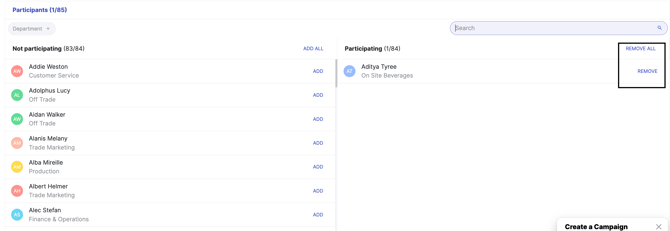
For the Conversations module, any participants added or removed after the campaign has been launched will not have conversations automatically created or deleted.
To ensure accuracy, make sure your participant list is finalized before launching the campaign.
Tracking Campaign Progress
After launching your campaign, you can track its progress at any time:
-
Go to Campaign Settings.
-
Navigate to the Report section.
From there, you can filter by:
-
Department
-
Manager
-
Module status
The report provides participant-level tracking, allowing you to clearly see the progress of each module for every participant.
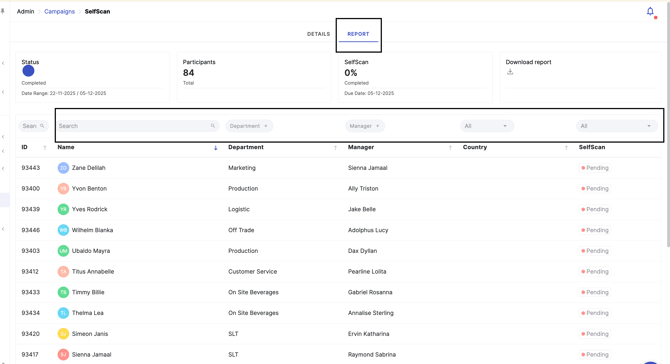
From this page, you can also download a report by clicking “Download Report.”
This option is only available once the campaign has ended.
However, you can download the report at any time from the general overview page before opening the campaign. This allows you to export the campaign data for further analysis or sharing.
For a more detailed walkthrough, you can watch this video, which guides you step by step through the process.
When you open the video in full screen mode, you can manage the video speed, captions, react and comment.
Transcript
0:00 Hi there, in this video we will discuss campaigns. Let's start by looking at the main benefits first. So, what are campaigns and how will they help?
0:09 You will be able to request profile scans, self-scans and more inside of Q7 Leader. It activates single or multiple modules inside the campaign with start and end dates and choose who you would like to participate.
0:21 Follow up made easy with statuses per participant per module. At any point during the campaign you can monitor live the completion of each task per participant.
0:31 a snapshot of what's submitted with Get a snapshot of what's submitted within the campaign. After the campaign is over, all profile scans and self-scans created within that campaign are And reporting and experts of team scan conversations from that campaign.
0:43 When the campaign ends, you will be able to export CSV reports of the team scan of that campaign at any given moment, as well as PDF reports per conversation.
0:53 let's look at campaigns in detail. First, log in to the platform and go to the admin panel. Only HR and authorized users can view and manage the content.
1:00 Now, click the plus icon to create a new campaign. You can name it as you wish, for example, Talent Cycle of 2024.
1:10 And include modules like TeamScan, SelfScan, and PCR Template. PCR stands for Performance Competence Review, and it's otherwise called, Conversations. So, I'm going to enable all three of these.
1:24 module has its own start and end date according to workflow needs. example, I will start the TeamScan and the SelfScan on the 1st of November.
1:33 intend to finish all the Talent Reviews by the end of November as well, so I will set the end dates on the 30th of November.
1:41 Conversations that will start after the Team Scan and the Self Scans have been completed, have, I will have it start on the 1st of December and end on the 20th of December.
1:52 are linked to automatic emails and notifications, which I will explain in a specific tutorial made for that topic, so please check it out.
1:59 Another thing to remember, though, is to make sure that you add the correct dates of the conversation. will no longer be able to change it.
2:08 that I've set the dates per module, I will set my start and end date for the Which will come at the same time as the earliest module and will finish at the, uh, time of the latest module.
2:19 So, uh, they will start on the 1st of November, like TeamScan and SoftScan, but they will finish on the 20th of December as PCR participants.
2:29 can add the whole company as participants with a single click on add all otherwise, I'm going to remove them and you can add a specific department that you would like to select.
2:40 So I'm going to open the department filter. Then I'm going to choose department hierarchy here so that I can select automatically multiple departments that are linked together.
2:49 So I'm going to select sales, which selects expert off-treat and on-treat as well. this is my population here, so in the non-populated areas.
2:56 So if part of the screen, I can see all the people from those four departments. I can then click on add all and those people will become participants.
3:06 Then if I remove the department filters here, or I can simply enter inside here and clear all. I will see everyone in the list that is not participating here.
3:18 And here I can see everyone that is participating. If you otherwise want to add just specific people or teams, you can, uh, remove these and you can add, uh, specific people like this, or you can search their name like this and add them to your process.
3:36 Then I I'm going to remove the search from here so I can see everybody. And there we go. and tracking progress.
3:45 After setting up the campaign, you will be able to access the report page to track progress. I'm now showing a campaign that has already ended so that you can see what it would look like once some work has been submitted into the campaign.
3:57 can filter participants by department, manager, or specifically, module status to see who has completed their work per participant. If I open the filter per module, I can see the three possible statuses, completed, incomplete, or pending.
4:10 And these are the ones that you will also see here. So here we can see, for example, that for Ubaldo, the manager of Ubaldo has completed the team scan, but he, Ubaldo himself, has not completed the self-scan, and him and his manager have not completed the PCR or the conversation.
4:27 For, uh, Kendra, for example, I can see that the manager has started, but not completed the team scan. She has done her own self-scan and they have completed their conversation.
4:39 reports. know who has completed them from this report page here. So, you will not be able to export any self-scan results, but you can see the status of them, uhm, right here.
4:59 Submitting scans to campaigns. When a participant starts a profile or a self-scan during the time your campaign is open, they will be asked whether they want to submit it to a campaign.
5:10 This will link the profile scan or self-scan in question to the active campaign which will allow you to track the results like you can see here.
5:17 sure to check out the quick submit to campaign tutorials per module that are going to be separate from this tutorial here.
5:24 Thank you for watching.