![Variation=Brandmark, Color=WhiteVector.svg]](https://support.q7leader.com/hubfs/Variation=Brandmark%2c%20Color=WhiteVector.svg)
In this article, you will learn how to:
-
Modify a GEP during a TeamScan campaign
-
Relaunch a TeamScan campaign after the GEP has been updated
When you are running a TeamScan campaign and notice that the GEP assigned in TeamScan is incorrect, HR or Admin users can update the GEP. Once the change has been made, you will need to create a new TeamScan to apply the updated GEP. The GEP will only be updated through the new TeamScan.
How to change a GEP in a TeamScan
This can only be done if you are not using RDPs. When the RDPs module is active, GEPs are automatically linked to the RDPs.
If RDP is being used, it must be changed for that team member in order to update the GEP.
- Navigate to the TeamScan section at the top. You will then be directed to the TeamScan overview for your organization.

- When you are inside a team member’s TeamScan, you will see the GEP assigned to them displayed in the grey section.
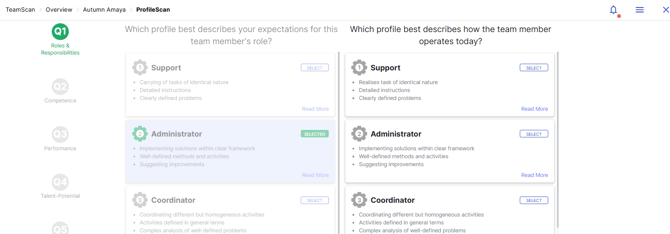
- To change it, click the Cancel (X) icon in the top-right corner.
- Then, click the three dots in the top-right corner and select “Edit Team Member.”
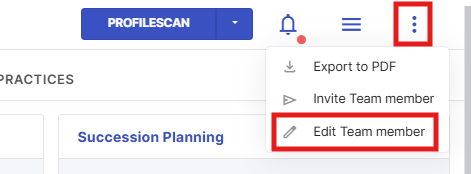
- You will be taken to the Team Member’s profile, where you can update their GEP.
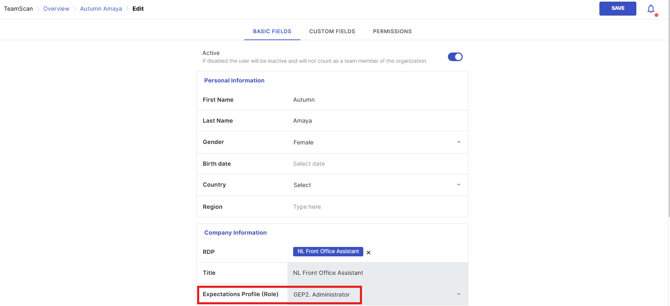
- Click the Expectations Profile button and update the level to the correct one.
- Then, click SAVE to apply your changes.
How to see the updated GEP in the TeamScan
- Return to the TeamScan section and open the row for the relevant team member.
- Then, click the “ProfileScan” button in the top-right corner.

In the new TeamScan, the updated GEP will be displayed.