![Variation=Brandmark, Color=WhiteVector.svg]](https://support.q7leader.com/hubfs/Variation=Brandmark%2c%20Color=WhiteVector.svg)
Key Features:
- Manage the overview: add colums and filters
- Understanding Objective States
- Objective Submission Flow
- Activity Log, Delete, Export PDF and Duplicate Objective
Overview
When you log in to myQ7Leader, go to the Objectives module, you will then arrive on the Overview.
Select "All" to view the objectives for your entire scope.
The "Me" section shows your personal objectives, while "Direct Reports" displays the objectives of your team members, available if you have a team reporting to you.
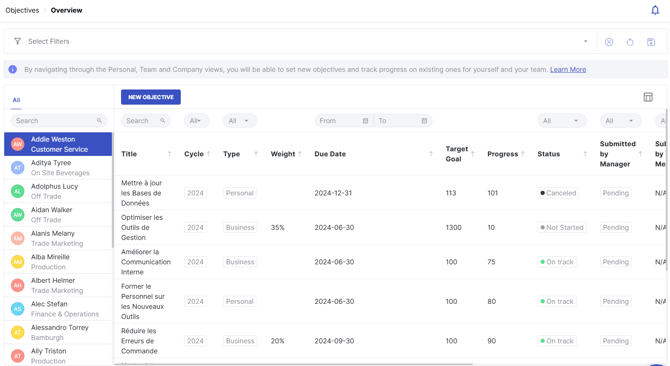
Objectives are shown in a customizable table view:
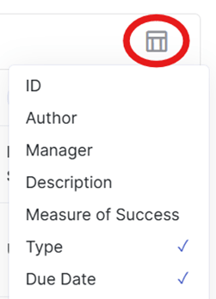
- Sortable columns by name, with the possibility to add/remove columns (Weight, Target, Last Update, Created Date).
Click on the icon at right and choose what information you want to add in the overview.
- Filters are available above each column to help you find specific objectives quickly.

By default, all objectives from non-archived cycles are visible to you. If you need to see the current cycle only, filter on the cycle.
- You can also filter using additional criteria by clicking on the button "Select Filters".
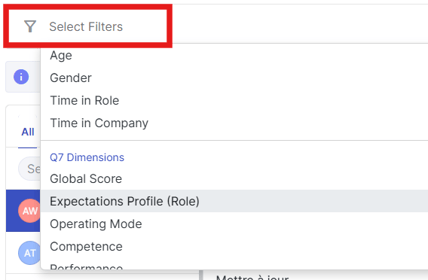
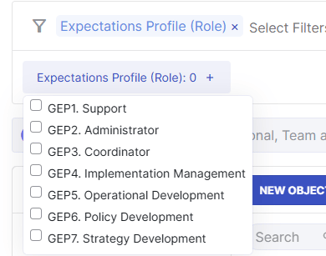
For example, if you want to filter by GEP, select the appropriate criteria and then choose the specific option you want to display in your overview.
Understanding Objective States
Each objective can go through several states, depending on its level of visibility and submission. Here's what each state means:
-
Draft (blue highlight): Only visible to you. The objective has not been shared yet.
-
Saved: Shared and editable by both participants but not yet submitted.
-
Pending: One party has submitted the objective; waiting for the other to submit.
-
Signed Off: Submitted by both parties. The objective is now locked and cannot be edited, except for feedback and progress fields.
Objective Submission Flow
Each objective goes through a clearer submission process :
- Saved : The objective is shared between both member and manager.
- Submitted by Member : The Member clicked on Submit button to approve the content of the objective.
- Submitted by Manager : The Manager submitted the objective for approval.
- Signed Off : Both submitted and the objective is now locked.

All objectives will require submission. Both the manager and the team member will receive email notifications whenever an action is taken on an objective - whether it has been created and shared, submitted, or commented on by the other party.
Please consult this article for more information on when a notification is triggered.
Activity Log, Delete, Export PDF and Duplicate Objective
By clicking the three dots on the left side of the objective row, you can access four to five options.
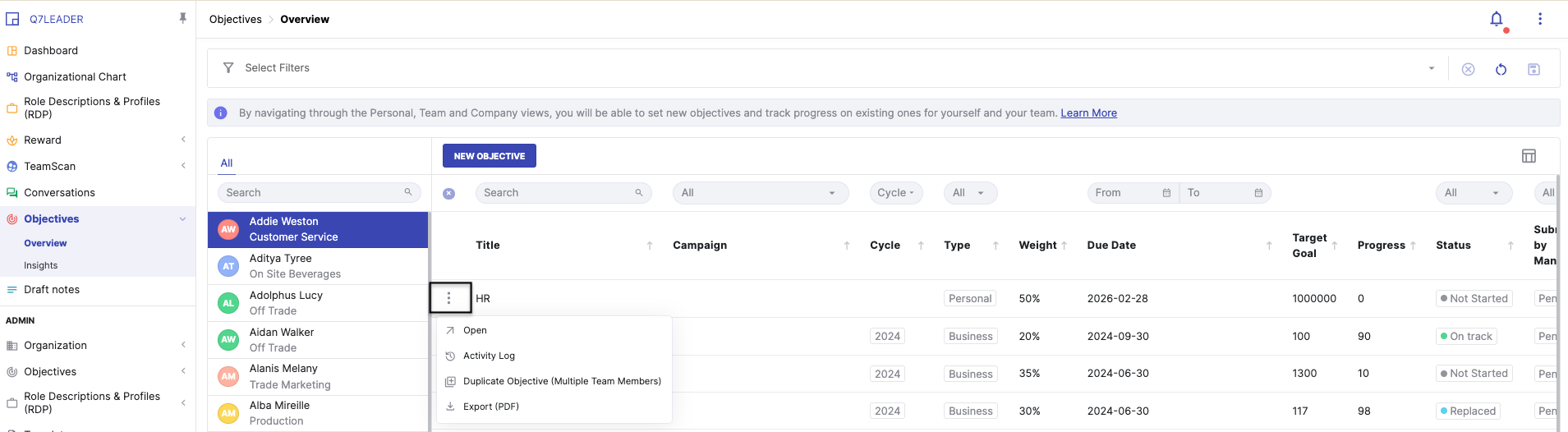
- Open: Opens the objective in a new window.
- Activity Log: View the modification history of the objective.
- Delete: Permanently delete the objective. Be careful, as this action cannot be undone. (only possible when the objective is unlocked)
- Export PDF: Export the objective as a PDF. Note that this option allows you to export only one objective at a time.
- Duplicate Objective: Copy an objective to assign it to multiple team members.