![Variation=Brandmark, Color=WhiteVector.svg]](https://support.q7leader.com/hubfs/Variation=Brandmark%2c%20Color=WhiteVector.svg)
Key Features
- Manage and customize views
- Reset submissions, lock, partially lock, and unlock objectives
- Submission workflow management
- Objective states and visibility controls
- Archive previous cycles
Objectives Library Overview
Go the Admin section and Objectives Module, and « Library » section to manage the objectives.
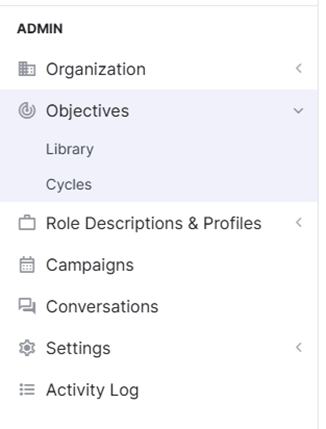
In this admin view, you can see all objectives from every cycle that has not been archived.
In the User's view, old cycles are no longer auto-hidden. If you want to archive a cycle to make the view clearer for users, go down this article.
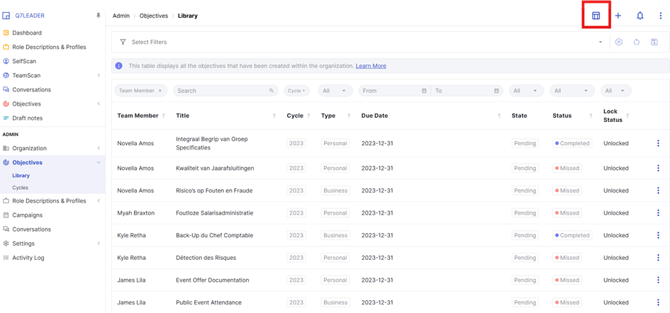
Objectives are shown in a customizable table view:
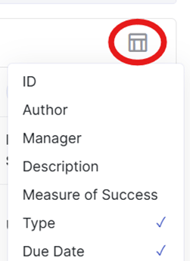
- Sortable columns by name, with the possibility to add/remove columns (Weight, Target, Last Update, Created Date).
Click on the icon at right and choose what information you want to add in the overview.
- Filters are available above each column to help you find specific objectives quickly.

How to Reset Submissions and Manage Lock Status
All objectives now require submission by default. Once submitted by both parties:
- The objective is fully locked.
- Only feedback and progress fields remain editable.
As an HR Administrator, you can perform several actions by clicking the three dots at the end of the objective line:

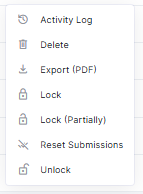
- Reset Submittions: Require re-submission by both parties (Team Member and Manager).
- Lock: The objective is not editable anymore by both parties.
- Lock (partially): Means that only specific fields remain editable. For example, you can still modify the due date, target goal, comments, and progress/status, while other fields are locked.
- Unlock: Make it editable again.
Resetting does not unlock the objective automatically.
Submission Flow
Each objective goes through a clearer submission process :
- Saved : The objective is shared between both Team Member and Manager.
- Submitted by Member : The Member clicked on Submit button to approve the content of the objective.
- Submitted by Manager : The Manager clicked on Submit button to approve the content of the objective.
- Signed Off : Both submitted and the objective is now locked. (not editable anymore)

Objective States and Visibility
- Draft (blue highlight): Only visible to you. Not yet shared.
- Saved: Visible to both manager and employee.
- Pending : The objective has been saved but not yet submitted by both parties.
- Signed Off: Submitted by both manager and employee. Objective becomes locked.
How to Archive Cycles
- HR should manually archive outdated cycles to clean up the front-end view for users.
- Archiving removes objectives from users' view, reducing confusion.
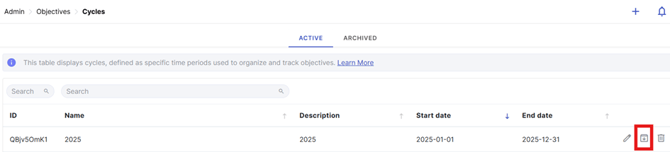
In the Cycles section, you can archive a cycle by clicking the icon on the right of the corresponding cycle.
Once archived, it will be available in the “Archived” section at the top.
If you need to duplicate or create a single objective for multiple team members at the same time, please refer to this article for detailed instructions.