![Variation=Brandmark, Color=WhiteVector.svg]](https://support.q7leader.com/hubfs/Variation=Brandmark%2c%20Color=WhiteVector.svg)
In this article, you'll learn how to:
-
Edit users – assign or update roles
-
Deactivate or delete users
To invite users to access the platform, please refer to this article.
If the user already exists - has accepted the invitation - and you need to update their role or user details, all the information you need can be found in this article.
How to Assign or Update Roles for a User:
- Navigate to the Organization section, then select Users.
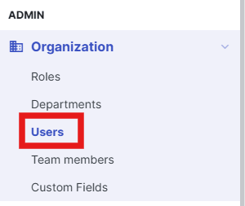
- Select the user you want to update, then click on the pencil icon to begin editing.

- To delete a role: Click the X icon next to the role.
- To add a new role: go to the Roles section and select the desired role from the dropdown list. A user can have multiple roles assigned simultaneously.
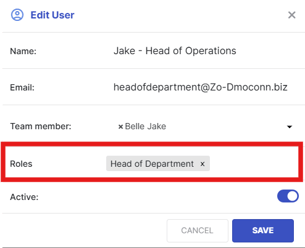
- Don’t forget to click Save to apply your changes.
How to delete or deactivate a User:
When you deactivate a user, they will no longer have access to the platform.
Deleting the user is unnecessary if they have already been deactivated.
Deleting a user will require them to be reinvited to the platform if they need access again. In contrast, deactivating a user allows you to reactivate their account later, enabling them to log in with their existing credentials.- Once you are in the Users section, use the Active toggle to activate or deactivate a user.
- To delete a user, click the trash icon.
