![Variation=Brandmark, Color=WhiteVector.svg]](https://support.q7leader.com/hubfs/Variation=Brandmark%2c%20Color=WhiteVector.svg)
When a Team Member is leaving the company, it’s important to deactivate their access properly to keep your workspace up to date and secure.
Setting an end date in the Team Member’s information is not enough: additional actions are required!
Steps to Follow
-
Access the Team Members list
In the Organization section, navigate to your Team Members list and locate the person you want to deactivate.
-
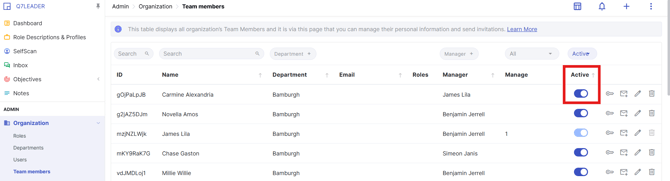
Deactivate the Team Member
Find the “Active” column, which indicates whether the Team Member is visible on the front end. Toggle the status off to deactivate the team member.
If the Team Member is not assigned as a Manager:
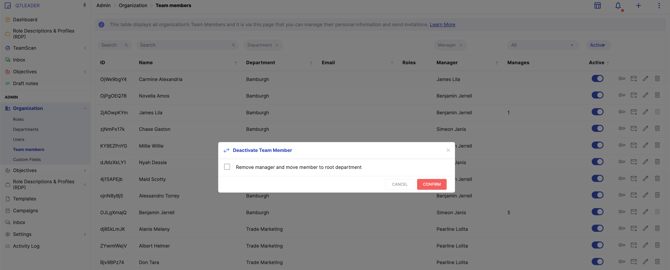
A prompt will appear with additional options:
- Click “Remove Manager and move member to root department” to automatically unlink the team member from their manager and department. This helps streamline any future changes at the manager or department level.
- If the team member has user access, you will also have the option to revoke their access. This allows you to disable their account without needing to deactivate it manually.
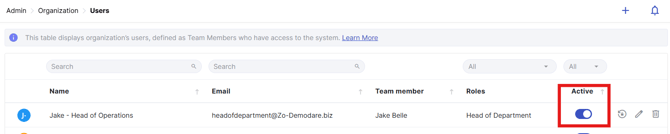
Alternatively, you can manually deactivate access:
- Go to the Users section.
- Locate the user.
- Deactivate their account to prevent further access.
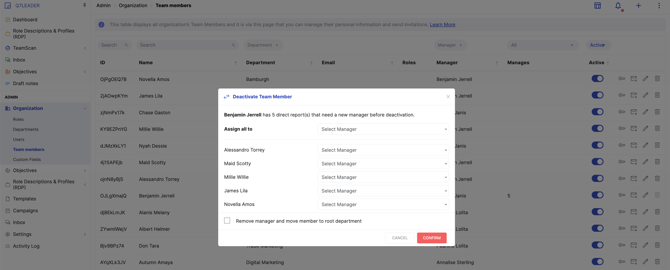
If the Team Member is assigned as a Manager:
A prompt will appear with options to manage their responsibilities before deactivation:
- You can reassign their team members to another manager. This can be done either in bulk (assign all team members to a single manager) or individually.
- Once reassignment is complete, you can select “Remove Manager and move member to root department” to unlink them from their managerial role and department.
- You will also have the option to revoke their access, ensuring they no longer have access to the platform.
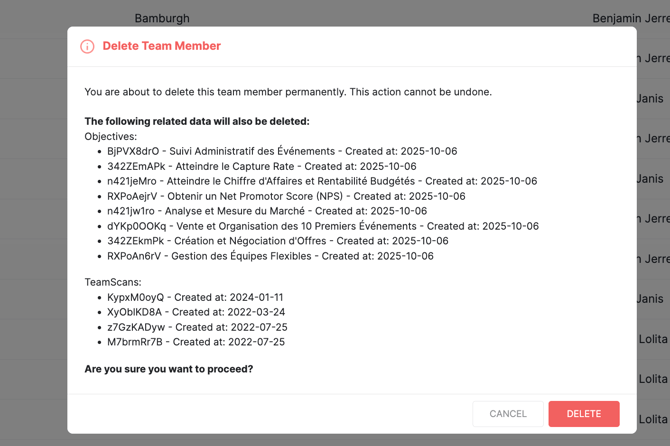
We do not recommend deleting a Team Member. Deletion will permanently remove all items associated with that person (objectives, TeamScan data, notes, conversations, etc.).
To preserve historical data, we strongly recommend deactivating the Team Member instead.
If you attempt to delete a Team Member, a warning message will appear to inform you about the permanent loss of their history: