![Variation=Brandmark, Color=WhiteVector.svg]](https://support.q7leader.com/hubfs/Variation=Brandmark%2c%20Color=WhiteVector.svg)
Within the MyQ7Leader platform, you will find Basic Q7Leader fields. In addition, you can create custom fields to capture and manage information tailored to your needs, such as language, email address, site, internal classification, or HRIS code.
These custom fields can be marked as sensitive and managed through role-based permissions, allowing you to control which users are authorized to view them.
To manage custom fields, ensure that the required permission is enabled for your role.
In the Role Settings, the Manage: customFields permission must be enabled.
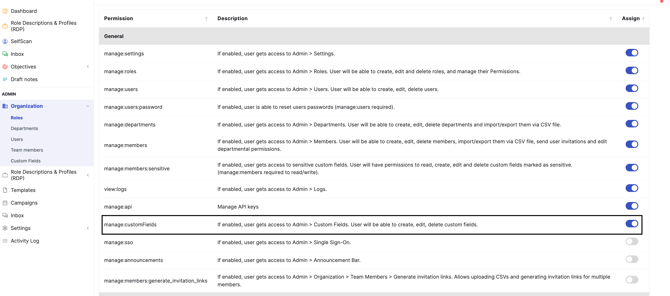
You can create two types of custom fields:
-
Text Custom Field
-
Dropdown Custom Field
To create custom fields, navigate to the Admin section, select Organization, and then click on Custom Fields.
-
To add a new field, click the + icon in the top-right corner.
-
On this screen, you can also edit or delete custom fields using the pencil or trash icon.
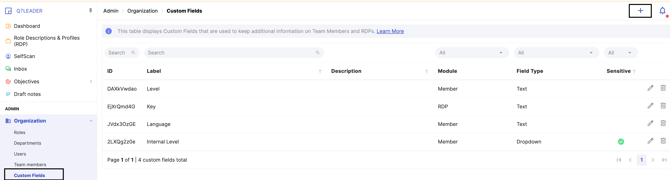
Creation of Text Custom Field
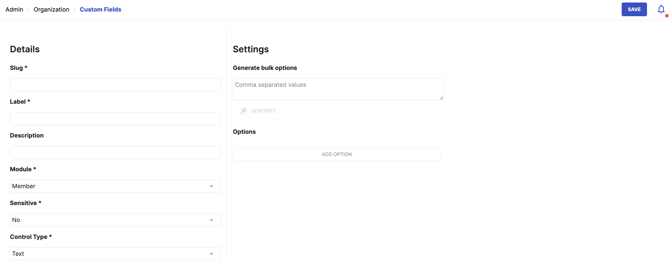
A Text custom field is a free-form field that lets users enter any information without predefined constraints.
-
Enter your custom field name in the Slug field. The slug represents the column title exactly as it will appear for imports, exports, and API usage. It must be continuous text without spaces, use a hyphen (
-) to separate words if needed. -
Enter your custom field name in the Label field.
-
Select the module where the field will be used: Member or RDP.
-
Choose whether the field should be marked as Sensitive (see below for more details).
-
Select Text as the control type.
-
Click Save.
Creation of DropDown Custom Field
A Dropdown custom field allows you to define a list of options that users can choose from when completing the field. This helps maintain consistency by ensuring the same values are used across records.
-
Enter your custom field name in the Slug field. The slug represents the column title exactly as it will appear for imports, exports, and API usage. It must be continuous text without spaces, use a hyphen (
-) to separate words if needed. -
Enter your custom field name in the Label field.
-
Select the module where the field will be used: Member or RDP.
-
Choose whether the field should be marked as Sensitive (see below for more details).
-
Select Dropdown as the control type.
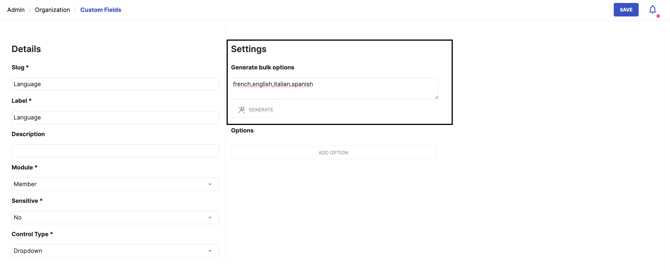
- To add your values, you can do it manually in the Options section: add the values you want users to choose from. For example, if you are creating a Language custom field, you could add options such as French, English, and Italian.
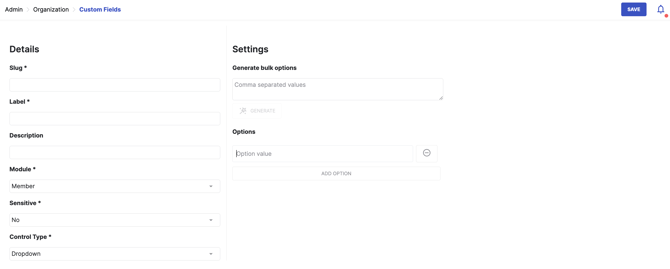
- If you have a comma-separated list of values, you can paste it into Settings and generate options in bulk. Clicking Generate will automatically create all the options from your list.
-
Click Save.
Sensitive Custom Fields
Sensitive fields are available only for Team Members, not for RDPs.
When creating a new custom field, you can specify whether it is a sensitive field by selecting Yes or No in the Sensitive section.
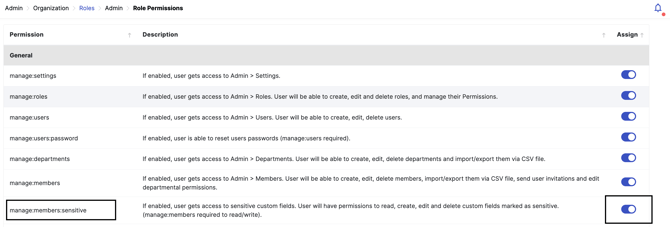
Sensitive fields will be hidden from users unless their role has permission to view them.
To grant access, go to Role Settings and enable the appropriate permission for the users who should be able to see these fields.
Use this Custom Field in an import
When performing an import, you can also import data into your custom fields. To do this, use the slug of the custom fields as the column names in your import file.
In this article, you will find more information about importing data into the platform.