![Variation=Brandmark, Color=WhiteVector.svg]](https://support.q7leader.com/hubfs/Variation=Brandmark%2c%20Color=WhiteVector.svg)
Accessing the Organizational Chart Feature
The Org Chart needs to be switched on before anyone can use it.
- A Super Admin enables the module at the organization level.
- Access is then granted role by role, choose which roles should be able to see the chart.
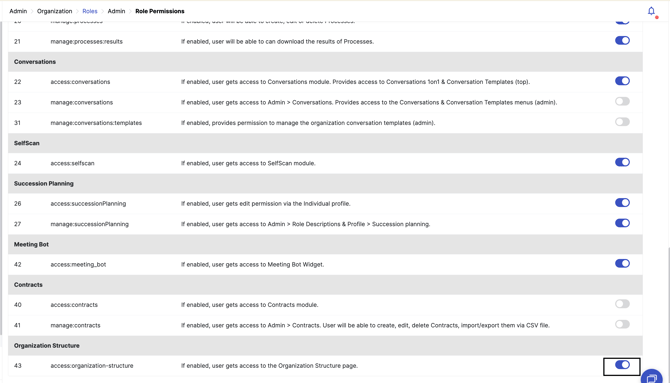
- Alternatively, the module can be enabled for HR only, who can then decide which roles or teams to share it with.
Good to know: Once someone has access, they see the entire company's org chart, not just their own team or direct reports. Visibility is not limited by hierarchy level.
Overview
The Organization Chart module gives your team a visual map of the company's reporting structure.
Once enabled, anyone with access can browse the full company hierarchy, search for specific colleagues, and jump directly to related tools like Team Scan.
There are two ways to view the chart:
- People View: shows individuals and their reporting lines
- Department View: shows the structure organized by department
Using People View
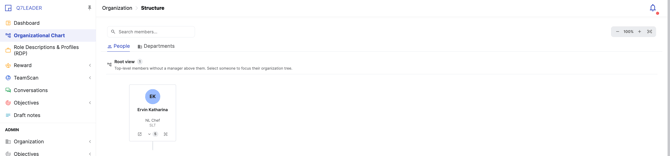
Starting point: By default, the chart opens on the CEO's card. Direct reports of the CEO are not shown automatically, you need to expand them manually.
Isolated Members
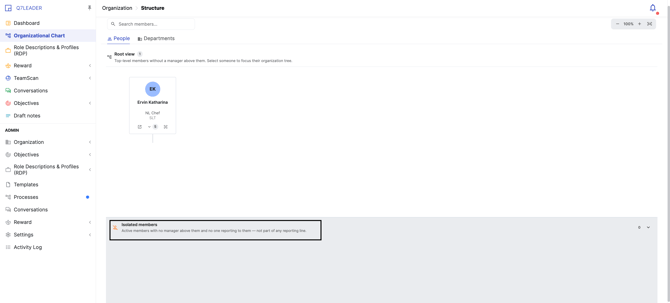
At the bottom of the chart, you'll find an Isolated Members section.
This groups anyone who doesn't currently have a manager assigned. It's collapsed by default, click to expand and view the list.
Navigating the chart
Each person's card can include a few action buttons:
| Button | What it does |
|---|---|
| Team Scan | Opens that person's individual Team Scan page |
| Direct Reports | Expands to show that person's direct reports (only visible for people who manage others) |
| Focus | Centers the chart on that person, showing both the level above and the levels below them |
-
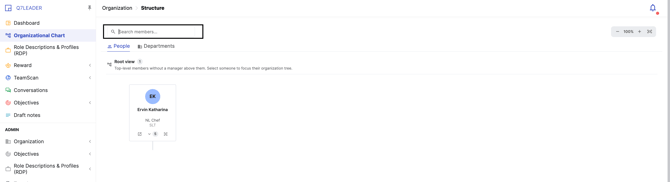
Search: Use the search bar to jump straight to a specific person, the chart will automatically focus on them.
-
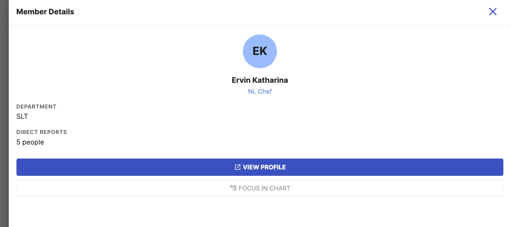
Person details: Clicking on a person's card opens a small panel with quick links to their Team Scan page or to focus the chart on them.
-
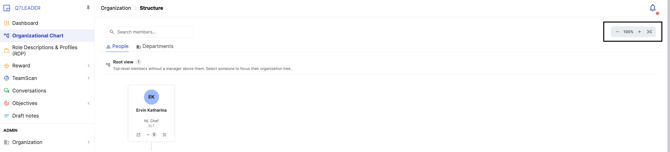
Zoom: You can zoom in or out on the chart itself. This only affects the org chart view, not the rest of the platform.
-
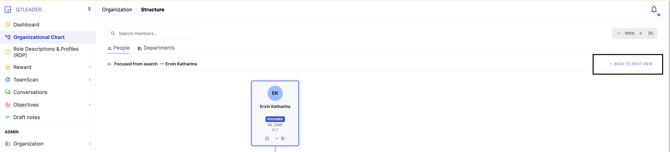
Root View: Use this at any time to return to the original starting view (the CEO's card).
Using Department View
Department View shows the company structure by department rather than by individual.
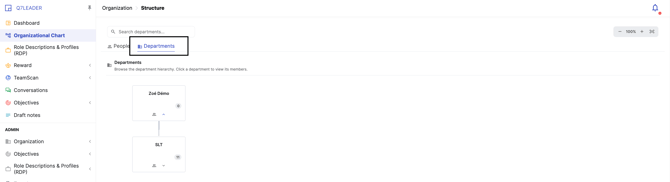
- The default view shows the top-level department, along with the level directly below it.
- Click on a department card to reveal the other departments.
- Click on a person or department card to see who belongs to it, clicking again collapses the list.
- Each department card shows the number of active members in that department.
Note: The default view in Department View is slightly different from People View. Department View shows a department and the level below it right away, while People View starts with just the top person (CEO).
Frequently Asked Questions
-
Can I only see my own team or direct reports? No. Anyone with access to the Org Chart module sees the structure for the entire company, not just their own reporting line.
-
What are "Isolated Members"? These are employees who don't currently have a manager assigned in the system. They're grouped separately at the bottom of the People View.
-
Can Users see the Org Chart? Yes, if an Admin has granted the relevant role(s) access to it.
-
Does zooming affect anything else on the platform? No, zoom only applies to the Org Chart view itself.
-
Is the Department View the same as the People View? No. They use slightly different default layouts and navigation, though both let you drill into managers, teams, and reporting lines.