![Variation=Brandmark, Color=WhiteVector.svg]](https://support.q7leader.com/hubfs/Variation=Brandmark%2c%20Color=WhiteVector.svg)
You can only modify or delete your SelfScan while the campaign is still active. Once the campaign has closed, it is no longer possible to make changes to a submitted SelfScan.
How to Manage your SelfScan
Start by logging into your myQ7Leader.
Navigate to the SelfScan Section.

You will see an overview of your submitted SelfScan.
Click the three dots on the right side of the row.
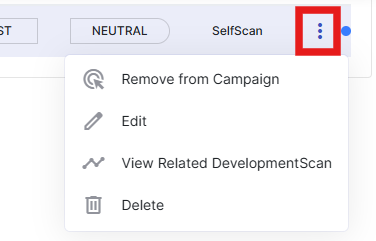
Here, you have the possibility to:
- Remove from Campaign: Temporarily removes your SelfScan from the current campaign without deleting it entirely. You can re-add it later if needed.
- Edit: Allows you to make changes or updates to your submitted SelfScan while the campaign is still active.
- View Related DevelopmentScan: Displays any DevelopmentScan entries linked to this SelfScan, so you can see related progress or evaluations.
- Delete: Permanently removes your SelfScan. This action cannot be undone, and the entry will no longer appear in the campaign.
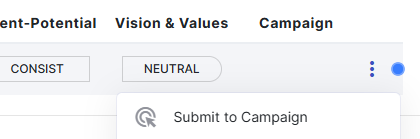
If you select “Remove from Campaign” the button will change to “Submit to Campaign” allowing you to submit your SelfScan again.