![Variation=Brandmark, Color=WhiteVector.svg]](https://support.q7leader.com/hubfs/Variation=Brandmark%2c%20Color=WhiteVector.svg)
As an administrator, it’s important to keep your Team Member records accurate and free of duplicates.
This guide explains how to safely identify and delete a duplicate Team Member.
Step 1: Identify the Duplicate Team Member
-
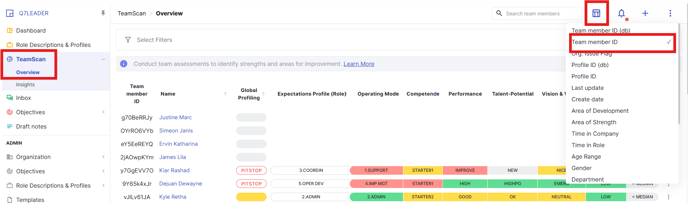
Go to the TeamScan Section.
-
Add the Member ID column to your view.
-
Use the search bar to locate the duplicate Team Member.

-
Open the individual TeamScan pages to determine which record should be deleted.
Tip: Prefer deleting the record that does not have any associated TeamScans.
Step 2: Find the Team Member in Admin
-
Copy the Member ID of the Team Member you want to delete.
-
Navigate to Admin > Organization > Team Members and search for the Member ID.

-
Verify that there is no user attached to this member (check that the Email and Role columns are empty).

Step 3: Detach Any Linked Users (if needed)
If a user is linked to the duplicate member:
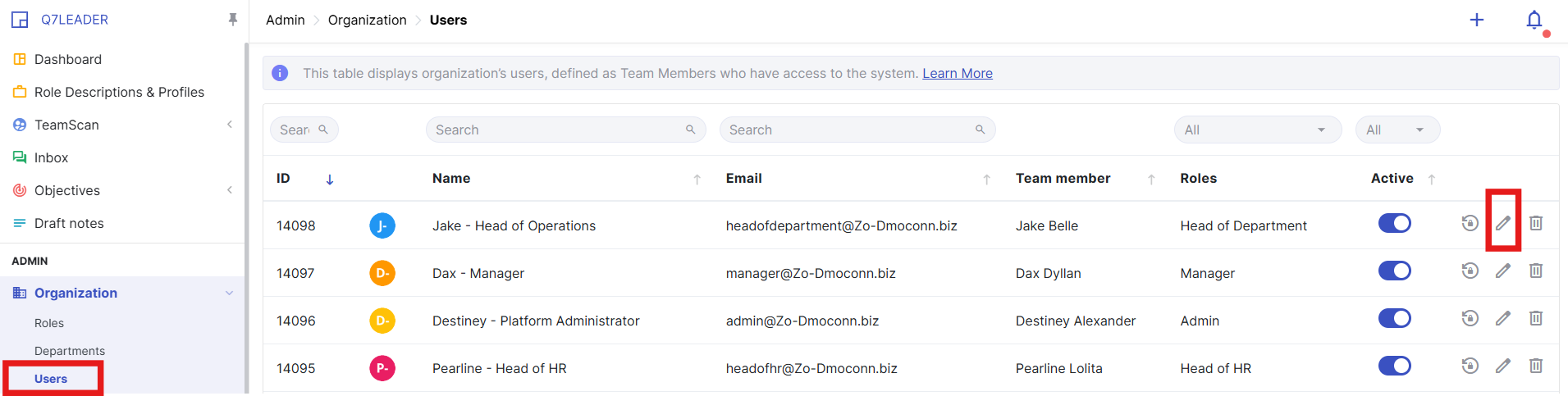
- Go to Admin > Organization > Users.
- Edit the user and reassign them to the correct Team Member.
Step 4: Delete the Duplicate
Once the Team Member has no linked user and is confirmed to be the duplicate, select Delete to remove the Team Member from the system.
