![Variation=Brandmark, Color=WhiteVector.svg]](https://support.q7leader.com/hubfs/Variation=Brandmark%2c%20Color=WhiteVector.svg)
In this article you will learn:
-
How to Duplicate objectives across multiple Team Members
-
How to Create objectives for multiple Team Members at once
How to Duplicate objectives across multiple Team Members
You can duplicate an existing objective and assign the copied version to multiple Team Members simultaneously. This allows you to quickly distribute shared objectives across a team while maintaining consistency and reducing manual setup time.
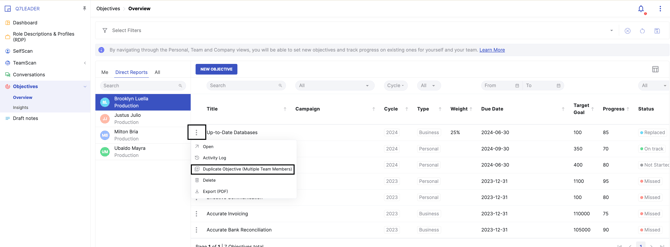
- In the Objectives Module Overview, locate the objective you want to duplicate, then click the three-dot menu on the left side of the row and choose "Duplicate Objective (Multiple Team Members)".
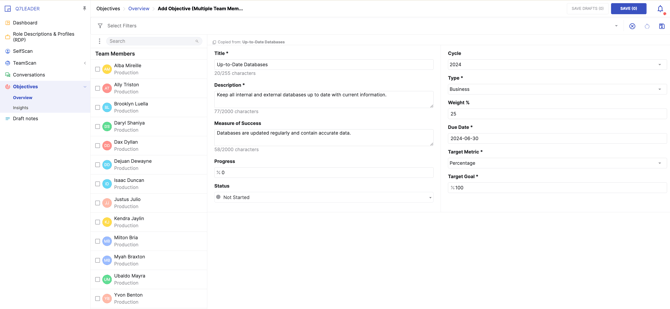
- After clicking Duplicate Objective, you will be taken to the following screen.
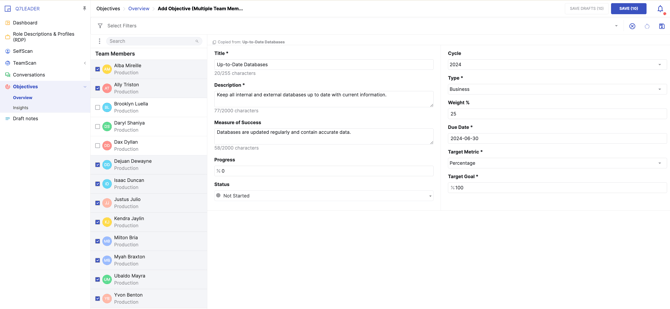
- Select the team members you want to assign the objective to by checking the box next to each name.
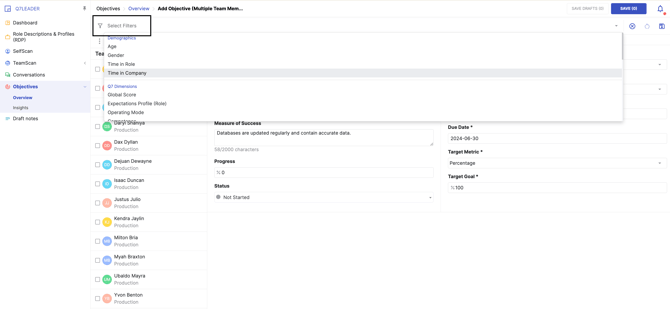
- You can also use the filter to quickly find and select team members based on specific criteria.
-
All fields will be copied over, except for progress, status, and comments, which are not duplicated.
If you are copying an objective from a previous cycle that is already archived, you will need to assign manually a new cycle.
-
Click Save Draft to save the objectives without sharing them with Team Members yet, or click Save to share the objectives with Team Members without submitting them.
-
You and your team members will then need to submit the objectives.

How to Create objectives for multiple team members at once
You also have the option to create a new objective and assign it to multiple team members simultaneously.
- Navigate to the Objectives's Library, then click the three-dot menu in the top-right corner of the screen and choose "Add Objective (Multiple Team Members)".

- Then, select the Team Members you want to assign the objective to. You can use the filter section to easily find Team Members by department, GEP level, or other criteria.
-
To apply the filter to your selection, click the three-dot menu on the left and choose Select all matching filters.
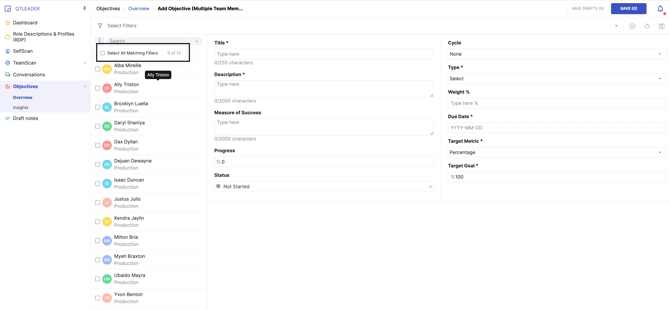
- Fill in the required fields in the objective section, then click Save Draft to save it without sharing, or Save to share the objective directly with your Team Members.