![Variation=Brandmark, Color=WhiteVector.svg]](https://support.q7leader.com/hubfs/Variation=Brandmark%2c%20Color=WhiteVector.svg)
The MeetingBot module is an AI-powered meeting recording and summarization feature integrated into Q7 Leader GROW.
It uses Recall.ai to record meetings and OpenAI to automatically generate meeting summaries and action items for each participant.
Meetings must be hosted on a platform supported by Recall.ai, such as Zoom, Microsoft Teams, Google Meet, or Webex.
In this guide, you'll learn about:
Before Using the Meeting Bot
Before using the Meeting Bot, please ensure you are aware of the following requirements:
- Privacy Policy: Please review our Privacy Policy before enabling the feature. (Link to be added.)
- Transcript Retention: Meeting transcripts are automatically and permanently deleted after approximately 45–60 days. This deletion only affects the original transcripts; any notes or summaries already generated will remain available.
Important: The Meeting Bot cannot automatically collect or verify participant consent. It is the responsibility of the meeting organizer and their organization to ensure that all required consents have been obtained and documented before using the feature.
Permissions
To access the Meeting Bot feature, the following permission must be enabled for your role:
Access:meeting_bot
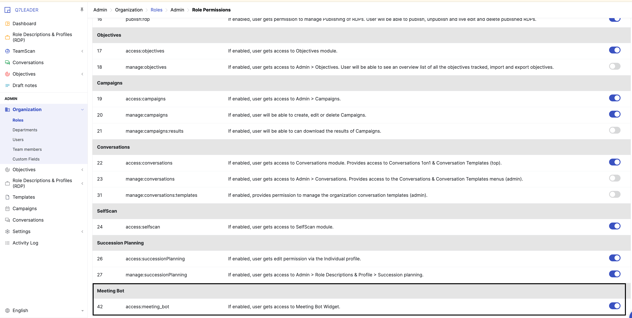
Once the permission is enabled, the Meeting Bot feature will appear at the bottom of the screen.
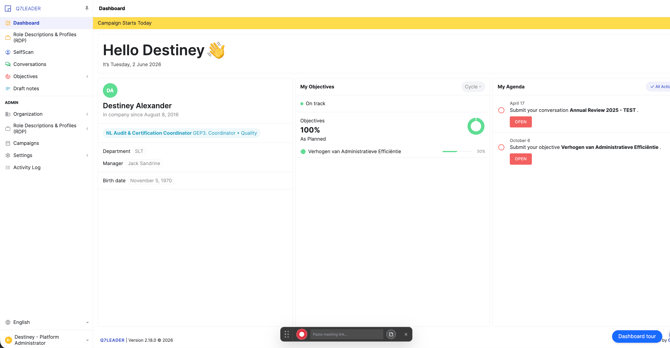
What does the idle widget contains
|
Element |
Description |
|---|---|
|
Record button (red circle) |
Starts a new recording |
|
Meeting URL field |
Paste your meeting link here |
|
Summaries button (notepad icon) |
Opens "Meeting Recap" modal with your pending summaries |
|
Drag handle |
Reposition the widget horizontally |
|
Close button |
Hide the widget for the rest of the session |

How to Record a Meeting
Step 1: Get Your Meeting URL
-
Copy the meeting join link from your calendar invitation or meeting platform.
Step 2: Start Recording
-
Paste your meeting link into the URL field on the widget.

-
Click the red record button (or press Enter).
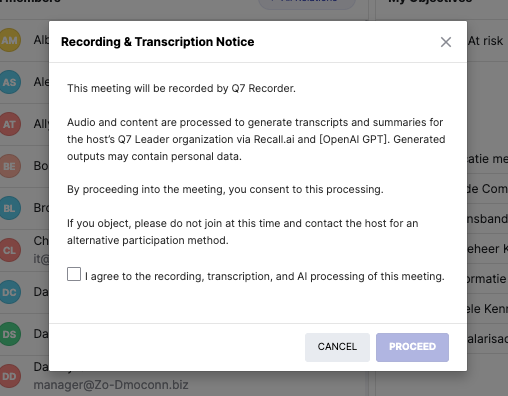
- A prompt will appear asking for your consent to record the meeting. Once you have provided your consent, click Proceed to allow the MeetingBot to join your meeting.
-
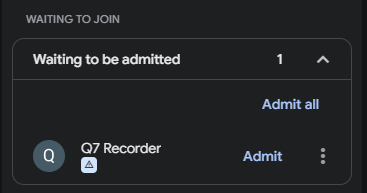
In your meeting window, click Admit to allow the MeetingBot to join the meeting.
Step 3: During the Meeting
While recording is active:
-
The widget moves through Inviting bot... → Bot in waiting room... → a live MM:SS timer once recording begins.

-
The widget polls the bot status every 5 seconds.
- A prompt regarding privacy and consent will appear.
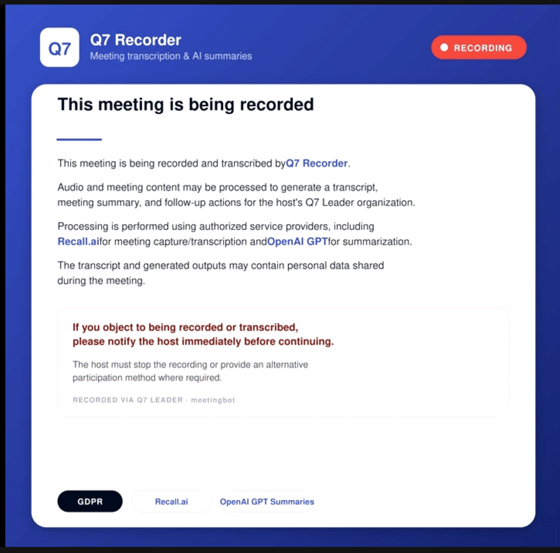
Tip: You can drag the floating widget horizontally if it overlaps with meeting controls. Reloading the page or hiding/showing the widget preserves the active recording.
Step 4: Stop Recording
You can stop the recording in two ways:
-
Click the stop button on the widget: the bot leaves the call and the widget switches to Processing....

-
End the meeting normally: the bot detects the call has ended automatically.
-
You can also click the cancel button while the widget is still in Inviting bot... / Bot in waiting room... to abort: this asks the bot to leave and marks the recording as Failed.
-
After the meeting ends, the system processes the recording in the background and shows a "Recording complete! Transcript saved." toast when the transcript is ready.
Important Notes
- You can only have one active recording at a time. Attempting to start a second is rejected with an error.
- The meeting URL must be a valid, joinable URL.
If the bot cannot join (waiting room timeout, denied entry, invalid URL, etc.), the recording status will change to Failed.
Understanding Recording Statuses
|
Status |
Description |
|---|---|
|
Pending |
Bot created, preparing to join the meeting |
|
Joining |
Bot is joining the meeting or waiting in the lobby/waiting room |
|
Recording |
Bot is actively recording the meeting |
|
Processing |
Meeting ended; transcript is being generated and AI analysis is running |
|
Done |
Recording complete — transcript and AI summaries are available |
|
Failed |
Recording failed (e.g., bot was denied entry, meeting URL invalid, recording cancelled) |
Reviewing AI Summaries
Once your meeting recording is complete, the MeetingBot automatically:
- Creates a summary for each member discussed during the meeting.
- Identifies follow-up action items.
- Links each summary to the corresponding member in your organization when possible.
If the MeetingBot cannot identify a member, the summary is assigned to Unknown. You'll need to select the correct member before you can create notes.
How to View your summaries
- Click the Summaries (notepad) icon on the MeetingBot widget.

- The Meeting Recap window opens and displays all new summaries.
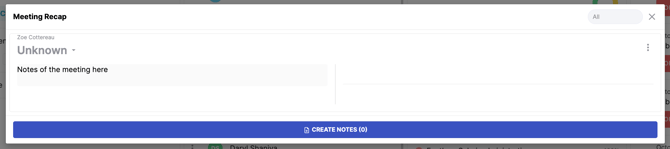
Each summary includes:
- The member's name (or Unknown if no match was found).
- An AI-generated meeting summary.
- AI-generated action items.
How to Edit summaries
Before creating notes, you can:
- Assign or change the member using the dropdown.
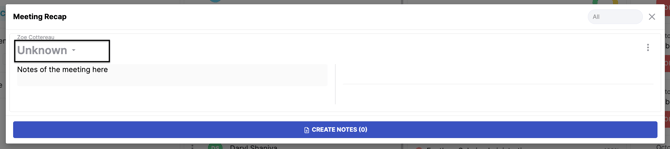
- Edit the summary if needed.
- Edit any action items.
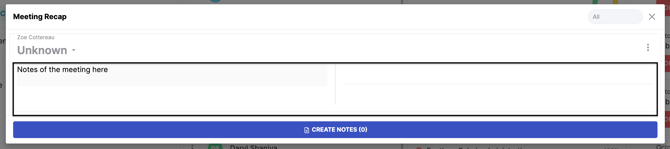
- Exclude a summary or action item by clicking the minus (-) icon.
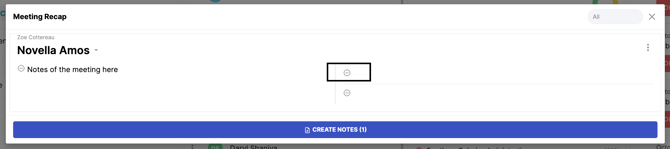
- Delete a summary from the More (⋮) menu.
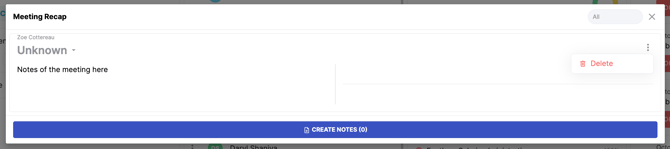
Note: If a summary is assigned to Unknown, you must select the correct member before it can be turned into notes.
How to Filter summaries
Use the dropdown at the top of the window to display a specific member's summary, or clear the filter to view all summaries.

How to Create Notes
When you're happy with the summaries:
- Click Create Notes.
- MeetingBot creates notes and saves them to each linked member's profile.
For each member, MeetingBot creates:
- A Meeting Summary note containing the AI-generated summary.
- A Meeting Action Points note for each included action item.
After the notes are created, the processed summaries are removed from the Meeting Recap window.
Any summaries still assigned to Unknown remain in the list until you link them to a member.