![Variation=Brandmark, Color=WhiteVector.svg]](https://support.q7leader.com/hubfs/Variation=Brandmark%2c%20Color=WhiteVector.svg)
Once your campaign has been created and launched, you can add or remove participants at any time.
For more information on creating new processes and campaigns, please refer to this article.
In this article, you will learn how to:
- Add someone to a campaign
- Remove someone from a campaign
- Understand what happens when a Manager change
- Handle late submissions
- Close and Lock the campaign
- Manage reporting
During the Campaign
Adding Someone Mid-Campaign
- Open the Campaign → Go to the Population tab.

- Select the new participants you want to add, then click the three-dot menu and choose Include.

- Click Save.
- They will be added as Included.
Tip: Filter by "Excluded" in the Participation column to quickly identify the Team Members who can be added to the campaign.

They'll receive the Activity Request right away (or, if the Campaign hasn't started yet, when it normally opens).
Removing Someone Mid-Campaign
- Open the Campaign → Go to the Population tab.
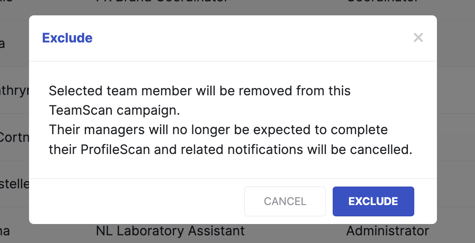
- Select the participants you want to remove, then click the three-dot menu and choose Exclude.
- Read the confirmation modal, it explains whether their data will simply be discarded or archived for audit, and confirm.
If a Manager Changes
Nothing to do here: it's automatic.
If an employee's manager changes (via an edit, a reassignment on deactivation, or a bulk import), the system reassigns any not-yet-started task to the new manager and preserves anything the old manager already completed.
To update a Team Member's Manager assignment, please refer to this article.
Late Submissions
When setting up your campaign, you can choose whether to allow late submissions.
If Accept Late Submissions is enabled, the End Date acts as a soft deadline and does not prevent participants from submitting their responses after it has passed.
Any responses submitted after the end date are marked as Late, and the task remains visible on the participant's dashboard as Overdue until the campaign is locked.
Close and Report
Closing the Campaign
The End Date of your campaign does not automatically close it. To prevent any further submissions, you must manually lock the campaign.
- Open the Process and, next to the campaign you want to close, click the three-dot menu and select Close Campaign.
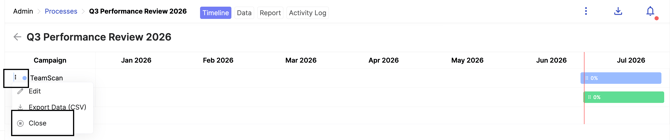
- Confirm in the modal: this action is final and cannot be undone.
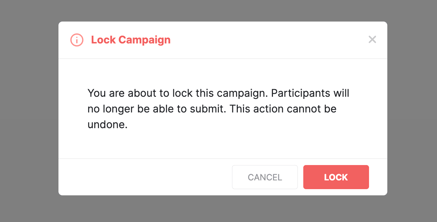
Once locked, no further submissions are accepted, remaining scheduled reminders are skipped, and anyone who never submitted is flagged Incomplete.
Reading Reports
- Per-Campaign report: open it from the Campaign page to see participant statuses, scores or conversation answers, and on-time/late tags.
In the Data tab, you can view participant statuses and check whether each participant has registered on the platform. This provides a quick overview of who still needs to be invited or registered, making follow-up actions easier and more efficient.
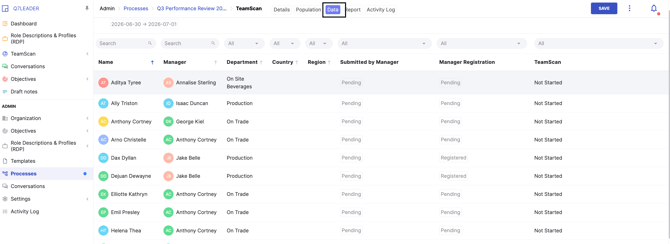
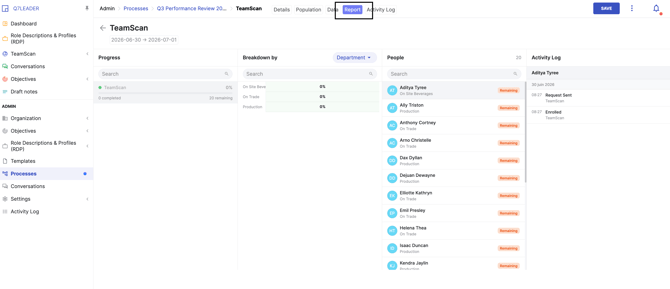
In the Reports tab, you can track the progress of your campaign. You can filter the data by department, country, or region. For each participant, you can also access the Activity Log, which allows you to verify whether the task has been created and when it was generated.
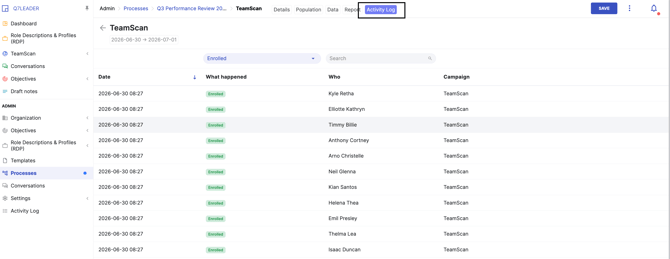
In the Activity Log tab, you can track all actions for each participant, including whether they have enrolled, registered, or been removed. If you have any doubts or need to investigate an issue, check this tab to see what happened and when.
You can export your campaign data to a CSV file at any time by clicking the three dots in the top-right corner and selecting Export to CSV.
- Process-level report: open the Process to see completion rates across all its Campaigns, side-by-side metrics, and a combined CSV export.
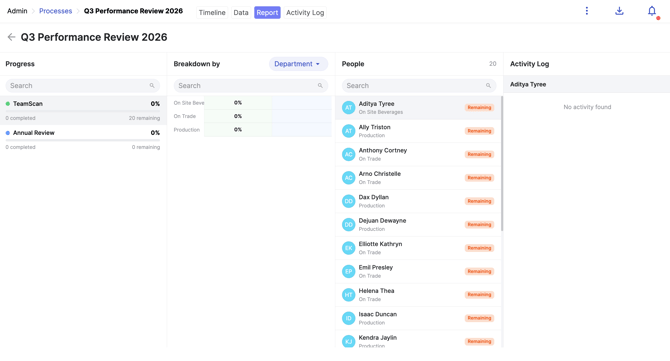
To export your process, click the icon in the top-right corner. A report will be generated and sent to you by email.

For more information about Processes, please refer to this guide.