![Variation=Brandmark, Color=WhiteVector.svg]](https://support.q7leader.com/hubfs/Variation=Brandmark%2c%20Color=WhiteVector.svg)
The profile photo is visible across the platform.
Once uploaded, it will appear on the dashboard as well as throughout all modules where the initials are displayed by default.
Supported formats include JPEG, PNG, and WebP. If no profile photo is set, the initials will be displayed by default across the platform.
How to Add a New Profile Photo
-
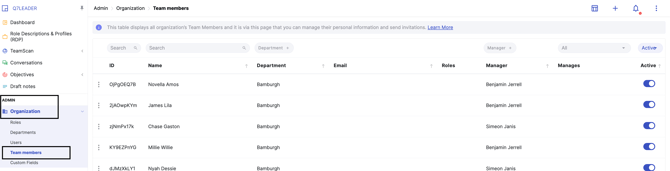
Navigate to the Admin section, then go to Organization > Team Members.
-
To view or edit a team member’s details, simply click on their row in the list.
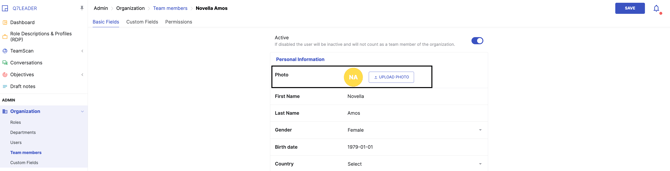
Click Upload Photo to upload a new profile picture.
-
Select the desired photo and click Save to upload.
-
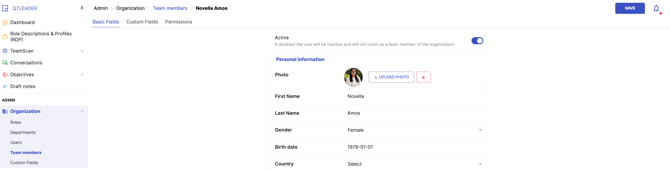
Once the photo has been successfully saved, a trash icon will appear next to it, allowing you to remove it if needed.
How to change a Team Member's Photo
Next to the current photo, click Upload Photo to select a new picture.
How to delete a Team Member's Photo
Next to the current photo, click the trash icon to delete the picture.