![Variation=Brandmark, Color=WhiteVector.svg]](https://support.q7leader.com/hubfs/Variation=Brandmark%2c%20Color=WhiteVector.svg)
In this article you will learn:
-
How to Convert your Excel File to CSV File
-
How to Import Your Data into MyQ7Leader
Note: When importing data into MyQ7Leader, ensure that your file is in CSV format and uses a comma as the field separator.
If you need assistance to export your data, follow this guide.
Convert your Data from Excel File to CSV File
When your Excel file is ready to be imported into MyQ7Leader, you need to convert it to a CSV file using a comma (,) as the separator.
We recommend using Google Sheets for this conversion. Depending on your computer’s regional settings, the comma separator may otherwise cause conversion errors.
-
Open a new spreadsheet in Google Sheets.
-
Click File → Open → Upload, then select your file that is ready for import.
- Once your data is imported into Google Sheets, go to File → Download → Comma-separated values (.csv).
- Make sure to keep only the columns you want to import.
- Your file is now ready for import into MyQ7Leader.
If you are using Excel, make sure to export the file in CSV UTF-8 (Comma delimited) format. Before proceeding, open the exported CSV file in a text editor such as Notepad to confirm that the values are separated by commas. Depending on your system’s settings, Excel may use a different delimiter. If the file is not comma-separated, please follow the step-by-step instructions in this article to adjust the settings and generate the correct format.
Import your Data
-
Navigate to the Team Members Section to import your data.
-
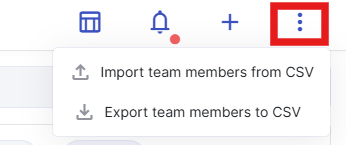
Click the three dots and select Import Team Members from CSV.
-
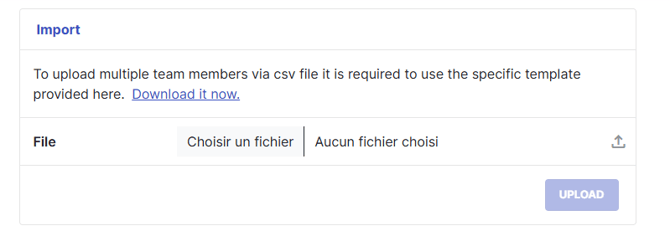
Select your file and click Upload.
A few things that can cause errors during import:
-
Use the Team Member ID as the key when importing data.
-
Use the Department ID if the import involves department changes.
- Use the Manager ID to link the Manager to the Team Member.
-
For dates, use the YYYY-MM-DD format.
Use this cheat sheet to see all mandatory fields and their required formats for imports.