![Variation=Brandmark, Color=WhiteVector.svg]](https://support.q7leader.com/hubfs/Variation=Brandmark%2c%20Color=WhiteVector.svg)
Accessing Questionnaires
To create a questionnaire campaign, you must have the following permission enabled for your role:
manage:processes
A campaign questionnaire is a questionnaire launched through a campaign in Processes.
Unlike an ad hoc questionnaire, it runs on a schedule: you set a start date, a deadline and reminders, and the campaign takes care of the rest.
The campaign owns the questionnaire
Campaign questionnaires, including Downward Feedback, belong to their campaign.
You cannot manage, close or delete them from the Questionnaires module.
Everything is done from the campaign.
In this article, you’ll learn how to:
- Create a questionnaire campaign
- Choose the participants
- Run and lock the campaign
- Understand what happens when a manager changes
- Understand what happens when participants are removed from the campaign
- Track the campaign’s progress
Create the campaign
- In Processes, create a campaign.
For more information on how to create a process or campaign, follow this article.
- Choose the activity type: Questionnaires or Downward Feedback.
- Choose a template.
- Set the start date, deadline, and reminders (optional).
- Click Save.
Choose the population
Always select the team members, never the managers.
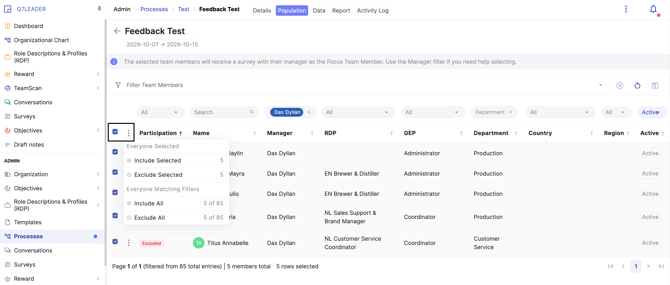
Go to the Population tab and select your team members using the available filters.
Alternatively, use the Manager column to add an entire team at once.

Once you’ve selected your participants, add them to the campaign.
|
Activity type |
You select |
Who answers |
About whom |
|
Questionnaires |
Team members |
Each selected team member |
Themselves |
|
Downward Feedback |
Team members |
The manager of each selected team member |
Each selected team member |
Let it run and close it
- Invitations go out automatically on the start date.
- Reminders are sent automatically according to your settings.
- When you are done, lock the campaign to close it.
Close campaigns from Processes, not from Questionnaires
Campaign questionnaires belong to their campaign.
They cannot be managed, closed or deleted from the Questionnaires menu.
A campaign that is past its deadline but not locked can still be answered.
What happens when a manager changes
Downward feedback
- Assessments not yet started move to the new manager.
- Drafts already started are kept but detached: the new manager starts from a blank form.
- Submitted assessments stay with the manager who wrote them.
- If the manager left with no replacement, the request is dropped and comes back once a new manager is assigned.
Remove someone from a campaign
This is permanent!
Downward: removes the whole questionnaire about that employee, including the manager's assessment.
Follow progress and read results
In the questionnaire: the Responses tab
Open the questionnaire to see everyone invited, their status, and each submitted answer in read-only mode.
Only submitted answers open in the side panel.
|
Status |
Meaning |
|
Invited |
Invited, has not opened the questionnaire yet. |
|
Started |
Opened the questionnaire but has not submitted. Answers may be saved but are incomplete. |
|
Completed |
Submitted. |
|
Missed |
Can no longer answer and did not: the invitation expired or the questionnaire was closed. |
Tip: a “Started” row is not an answer yet. Use this view to follow up with respondents while the survey is open.
On a person's TeamScan page
On an employee's individual page, open the Questionnaires tab to see every questionnaire that person is the subject of.
Open one to browse the respondents' answers in the side panel.
The counter shows how many answers were submitted.
This requires access:questionnaires and access to that person. Exports are not available here.
Export results from Admin > Questionnaires
- Go to Admin > Questionnaires (requires manage:questionnaires).
- Filter the list if needed.
- Choose Export Responses (Filtered) or Export Responses (All).
The export has one row per respondent and one column per question.
It includes more detail than the profile view, such as external respondents' names and email addresses.
Tip: for feedback campaigns, group the export by Manager ID.