![Variation=Brandmark, Color=WhiteVector.svg]](https://support.q7leader.com/hubfs/Variation=Brandmark%2c%20Color=WhiteVector.svg)
A cycle now defines:
- Who it applies to (the population)
- When things happen (the phases)
- What objectives should look like (the validation rules)
Each member then gets a Green or Red status showing whether their objectives follow the rules of the current phase.
NEED DIFFERENT RULES FOR DIFFERENT TEAMS?
Rules are the same for everyone inside one cycle.
To apply different rules to different teams, create one cycle per team.
You can still run a single campaign for the whole organisation: each participant only sees their own cycles.
EXISTING CYCLES
Your current cycles have been moved to the In-progress phase, apply to all members and have no rules.
They work exactly as before, and everyone is green until you add rules.
Before you start
Take a moment to decide:
- Which Team Members the cycle is for (everyone or a group of Team Members)
- Which phases you need (Setting and Review are optional)
- How many objectives Team Members should have, and the total weight
- Which objective types, statuses and metrics are allowed
- Whether Team Members can cancel or replace objectives during the year without turning red
Create the cycle
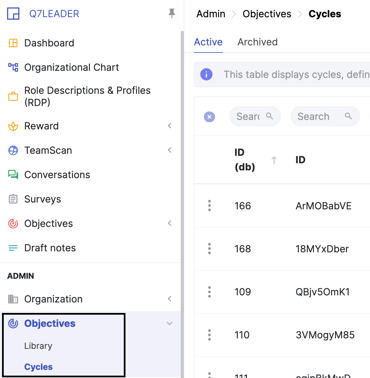
Go to Admin > Objectives > Cycles.
Step 1: Fill in the details
-
Create a new cycle.

-
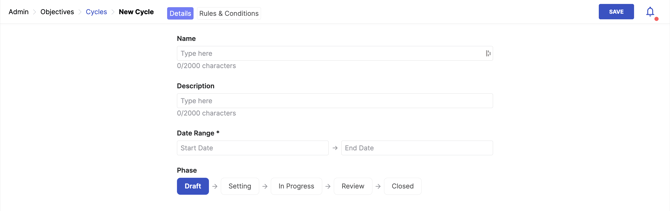
In the Details tab, enter the name, description and date range.
-
Below these fields, you will see the phases of the cycle displayed in a line: DRAFT, SETTING, IN PROGRESS, REVIEW & CLOSED.
-
A new cycle starts in Draft, so members cannot see it yet. Take your time to set it up.
-
A new cycle has no rules by default, so every member is green until you add some.
Step 2: Set the global rules
-
Each phase (Setting, In-progress, Review) has its own tab with its own rules.
-
If you want the same rules all year, you only need to set them for In-progress.
-
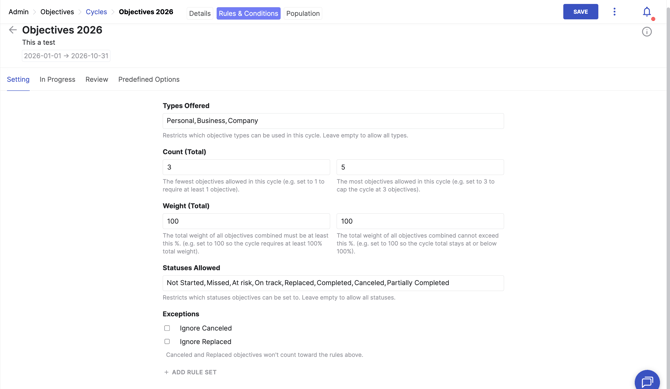
At the top of each phase is the global rule group. It applies to all objectives in that phase.
Here you choose:
-
Objective types: Only the objective types you select will be available to members when they create an objective. For example, if you select Business and Company, members will be able to choose between these two options.
-
Accepted statuses: this is the easiest way to make phases different.
For example: in Review, accept only final statuses (Completed, Partially completed, Missed, Canceled) so every objective ends with a real outcome.
- Number of objectives: minimum and maximum of objectives accepted.
- Total weight: The minimum and maximum total weight allowed for the cycle.
- Metric type: To set up a metric type, you need to add a rule set.
TIPS
-
Everything is selected by default, which means no restrictions. Unselect what you do not want.
-
To require an exact value, enter the same number as minimum and maximum (for example 100 to 100).
-
Each phase must keep at least one type, one status and one metric per group.
Exceptions: cancelled and replaced objectives
In the global group, you can choose to exclude Cancelled and/or Replaced objectives from the rules.
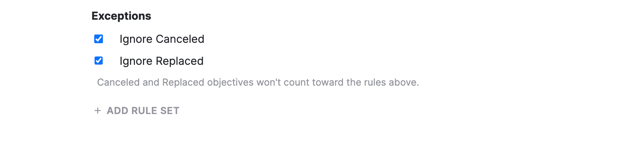
They will no longer be counted, so members can add new objectives and cancel old ones during the year and stay green.
Example: a member changes role and needs new top-down objectives. The manager cancels the old ones, the new ones are added, and the member is green again.
Step 3: Add rule groups per type (optional)
For more detailed rules, add groups for specific objective types.
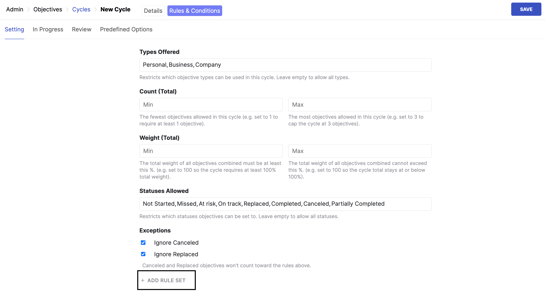
-
Click "Add Rule Set".
-
Each group is named after the types it covers, and you can group several types together (for example Business + Company).
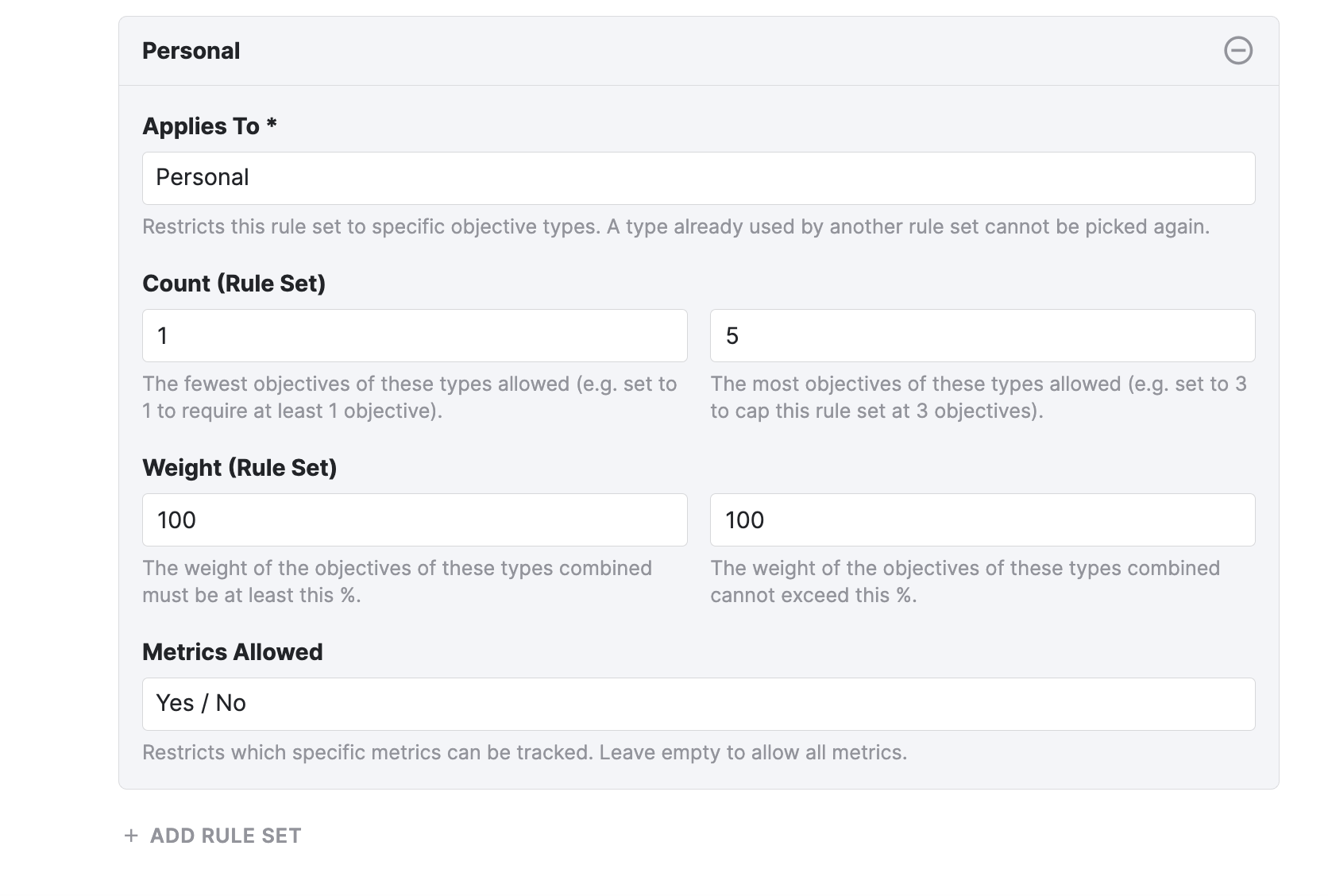
For each group, you set:
-
You can create up to three groups, one per objective type. A type can only belong to one group.
-
Every objective must follow the rules of its group and the global rules.
For example:
|
Rule group |
Number of objectives |
|
Global |
5 to 7 |
|
Business + Company |
4 to 6 |
|
Personal |
1 to 3 |
A member with 6 Business objectives and 3 Personal objectives respects both groups, but has 9 objectives in total, which is over the global maximum of 7. Their cycle is red.
TIP: OBJECTIVES ONLY HR CAN CREATE
Select only Business and Personal in the global group, but add Company to a rule group.
Company objectives are still checked by the rules, but members cannot create them. Only HR can add them, for example by import.
Step 4: Set predefined progress values (optional)
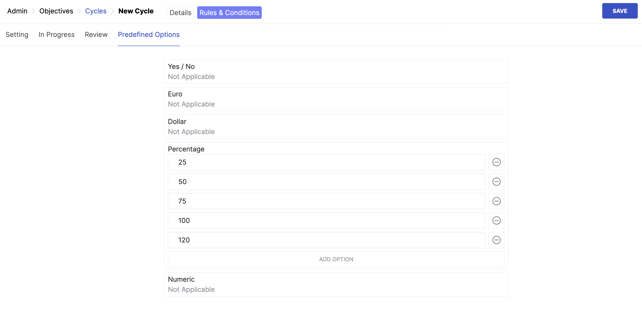
In the progress values tab, next to the phase tabs, you can set a fixed progress scale, for example 0, 25, 50, 75, 100. It applies to the whole cycle.
- It only works for the Percentage metric, because it is the only metric with a fixed goal (100%). For other metrics, the member and manager set the goal themselves.
- The scale is added automatically to new Percentage objectives. Percentage is the default metric.
- It does not affect the green or red status.
- It only applies in the interface. Objectives added by import or API can use other values.
Step 5: Choose the population
Select who the cycle applies to. The population picker uses the same filters as campaigns.
- All Team Members (default): all active Team Members are included, and new joiners are added automatically.
- Custom population: filter by department, RDP, GEP, country, region or name, and include or exclude individual members. (New joiners are not added automatically!)
Members only see the cycles they belong to.
WATCH OUT WITH CUSTOM POPULATIONS
New joiners are not added automatically to a custom population. If you forget to add them, they will not be in any cycle.
We recommend using All Team Members unless you have a clear reason not to. If you use a custom population, remember to add new joiners manually to both the cycle and the campaign.
Step 6: Check your rules
You set rules one phase at a time.
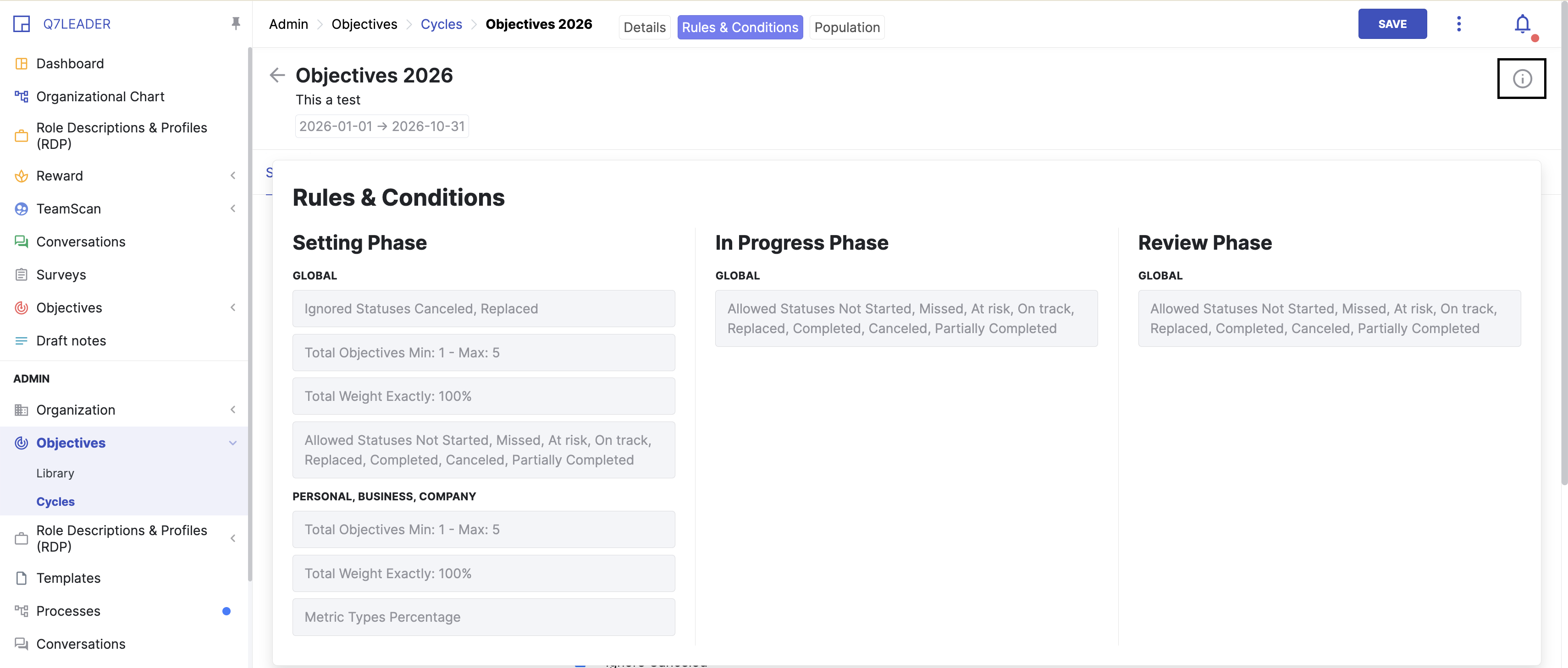
To see everything together, open the rules overview from the info icon. It shows all phases side by side, and how the rules will look for members.
WATCH OUT: CONTRADICTORY RULES
The platform does not check whether your rules contradict each other. If group weights or counts cannot fit within the global rules, every member stays red and no warning is shown.
If all your members are red, this is the first thing to check. You can fix the rules at any time, even during a campaign.
Managing your cycles
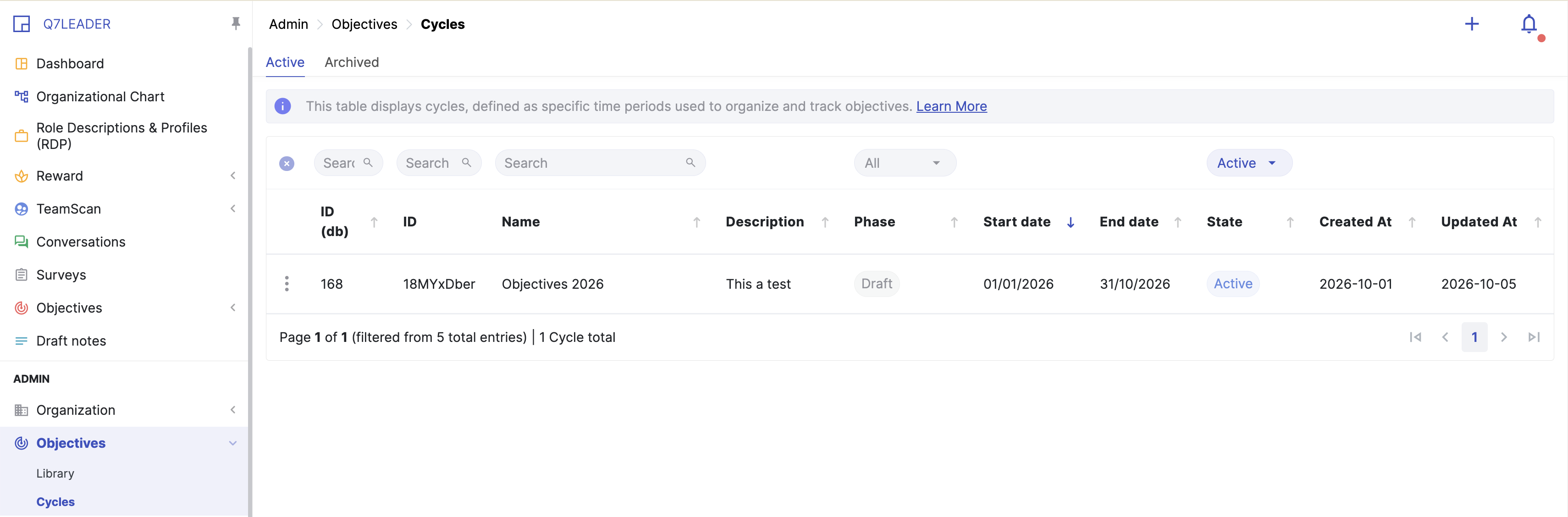
- Cycles overview: the list shows active cycles and the current phase of each one, so you can quickly see which cycles need a phase change. Archived cycles are hidden behind a filter.
- Update rules at any time: changes apply straight away. Objectives already submitted keep the rules that applied when they were submitted.
- Close or archive: closed cycles stay visible to members as read-only. Archived cycles are hidden from members. Archive old cycles to keep their list short.