![Variation=Brandmark, Color=WhiteVector.svg]](https://support.q7leader.com/hubfs/Variation=Brandmark%2c%20Color=WhiteVector.svg)
- Cycles are now selected on the Process Campaign setup page, rather than in the Conversation Template.
- The Objectives question type is no longer available in Conversations.
- If your existing templates contain Objectives question types, they will no longer appear in the template selection list.
- As a result, you will need to rebuild your templates before you can select them in a campaign.
In this article, you will learn how to:
- Choose the right campaign type
- Add one or more cycles to a campaign
- Understand what participants see in the conversation
- Submit a conversation and understand why all cycles must be green first
- Export submitted objectives
How to set-up Cycle into your Campaign
To create a new process and add a campaign to it, please follow the steps outlined in this article.
To set up a cycle within your campaign, select the “Conversations & Objectives” activity type.
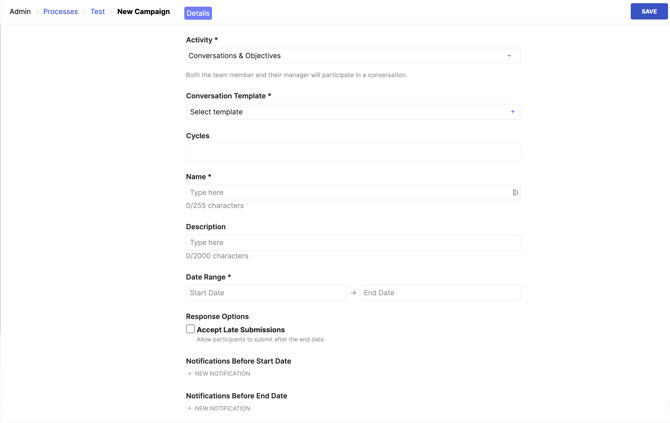
From there, you can choose to create:
-
A conversation-only campaign, with no cycles: Select your template in the Conversation Template section and leave the Cycle selection empty.
To create a template, please follow the steps outlined in this article.
-
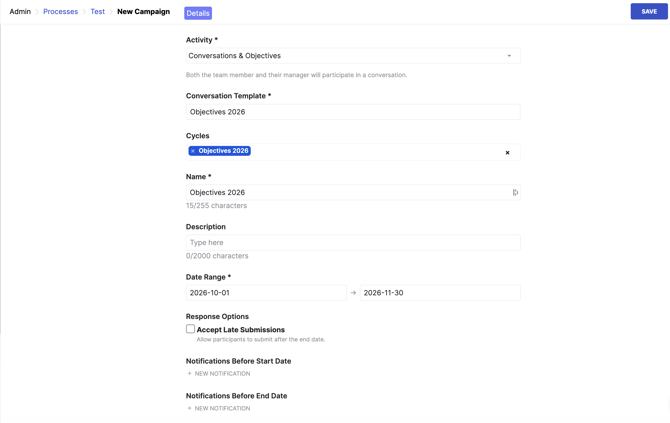
A cycle-only campaign: You will still need to select a conversation template. To do this, first create a template containing only an info box. Then, add your cycle to the campaign.
-
A campaign with both conversations and cycles: Select your conversation template and add your cycle.
Because each cycle has its own population, you can use one conversation template for the whole company.
All participants see the same questions, but only their own cycles.
How it works in a Conversation
- The conversation questions are on the left and the objectives on the right, with one tab per cycle. Each tab shows whether that cycle is green or red.
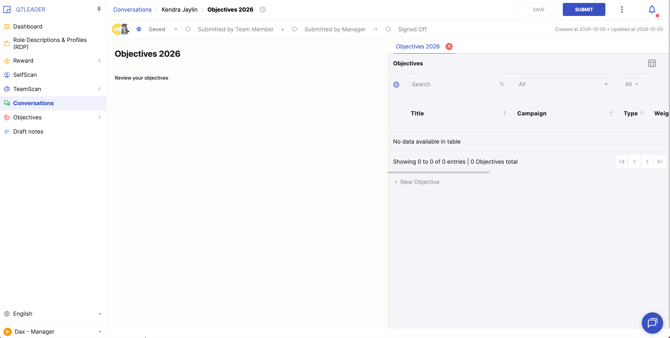
- The only Submit button is on the conversation. It cannot be submitted while a cycle is red, and an error message explains why.
- When both people have submitted, the conversation is locked and the agreed objectives are saved as they were.
Reporting
You can export an objective report from the campaign, showing objectives exactly as they were when submitted, for example for bonus calculation.
You can also export from the Objectives module once the cycle is closed.
Objectives can only be part of a conversation inside a Process Campaign.
Ad-hoc conversations can no longer include objectives.