![Variation=Brandmark, Color=WhiteVector.svg]](https://support.q7leader.com/hubfs/Variation=Brandmark%2c%20Color=WhiteVector.svg)
Key Features:
- Import Objectives: Allows you to add or update multiple objectives at once by uploading a structured file (CSV). This is ideal for large teams or when rolling out new initiatives.
- Export Objectives: Lets you download existing objectives for review, analysis, or reporting purposes. Exported files can be used for audits, progress tracking, or sharing with stakeholders.
Note: If you update existing objectives via import, notifications may be sent to participants if the objective was submitted by one or both of them. This is because the import modifies an objective they have already agreed to.
Preparing Your Data for Import
A successful import starts with well-prepared data.
-
Template Usage
Always use the official import template provided in your system. This ensures that all required fields are included and formatted correctly.
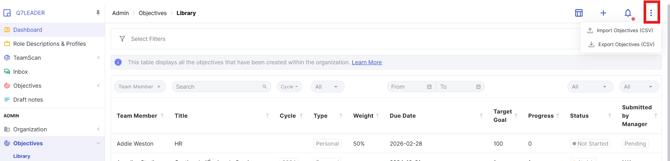
Navigate to Organization → Objectives → Library.
Then click the three dots in the top-right corner and select ‘Import Objectives CSV’.
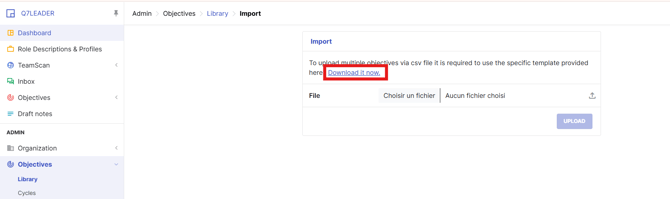
Click ‘Download it now’ to download the provided template.
-
Convert your file to Excel format to work on it (if applicable).
Before entering your data, convert the file to Excel format.
Then follow this article to transform the data and adjust the format.
-
Fill in the required fields.
Check these guidelines to avoid errors.
-
Validation
Double-check your data for inconsistencies, missing values, or formatting issues. Correcting these before import saves time and prevents errors.
-
Converting your file to CSV
Before importing your file into the system, make sure to convert it back to the CSV (comma-separated) format.
If you need more support, you can view this article.
Importing Objectives
Follow these steps to import objectives into your system:
-
Access the Admin Dashboard: Log in and navigate to the Objectives and the Library.
-
Select Import: Click on the Import Objectives button and upload your prepared file.
Exporting Objectives
Exporting objectives is quick and simple:
-
Navigate to the Objectives section:
Go to Objectives → Library in the admin dashboard. -
Select Export:
Click the Export Objectives option. (The three dots in the top-right corner) -
Download the file:
Click Export to generate and download the file. -
Convert the file to Excel format if needed for analysis or reporting: You can find more information on how to do this here.
Best Practices
-
Backup Data: Always keep a backup of your existing objectives before importing new ones.
-
Test Imports: Run a test import with a small sample file to catch potential issues before uploading large datasets.
-
Keep Templates Updated: Ensure your import templates are always in sync with the system’s latest requirements.