![Variation=Brandmark, Color=WhiteVector.svg]](https://support.q7leader.com/hubfs/Variation=Brandmark%2c%20Color=WhiteVector.svg)
Questionnaires let you build a form, send it to anyone inside or outside your company, and keep every answer in Q7Leader: linked to the right person, with one list of respondents and one export.
You can use Questionnaires to collect 360° feedback about an employee, ask a group a question, run a company-wide pulse, or organize manager feedback campaigns.
In this guide, you’ll find more information about:
- Questionnaires templates
- How respondents answer
- Where Questionnaires results appear
- Module permissions
Two ways to run a Questionnaire
|
|
Ad hoc Questionnaires |
Campaign Questionnaires |
|
Created from |
The Surveys menu (or a person's TeamScan page) |
Processes (as a campaign) |
|
Launched by |
HR, managers, or team members with the right permission |
HR |
|
Timing |
Live as soon as you save. No schedule, no reminders |
Start date, deadline and automatic reminders |
|
Closing |
Closed manually by the creator |
Closed by locking the campaign |
|
Best for |
Getting an answer now, for one person or one group |
Collecting feedback at scale, on a schedule |
To learn how to create an Ad hoc Questionnaires, follow this article.
To learn how to create a Campaign Questionnaires, follow this article.
The five Questionnaires types
|
Questionnaire type |
Mode |
Who answers |
Who can see the answers |
|
Feedback on a team member (360°) |
Ad hoc |
Colleagues, clients or partners chosen by the creator |
Anyone with access to that person in TeamScan |
|
General question |
Ad hoc |
Any group, internal and/or external |
The creator, plus admins with survey oversight |
|
General Questionnaire |
Campaign |
Each selected employee, about themselves |
Admins with survey management rights |
|
Downward feedback |
Campaign |
Each manager, about each of their reports |
Anyone with access to the report in TeamScan (not the report) |
Ad hoc Questionnaires
Feedback on a team member (360°)
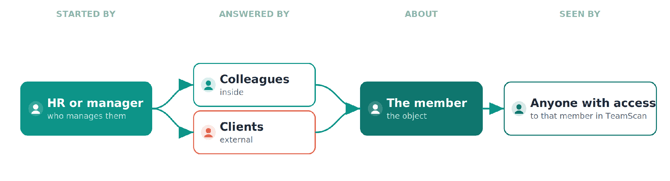
When to use it: a manager or HR wants rounded feedback about one specific employee, from colleagues inside the company and from clients or partners outside it.
- The employee is set as the Focus Team Member, and every answer is collected on their profile.
- Internal respondents answer while logged in. External respondents answer through a private link.
- The employee cannot see the feedback about them. Only people with access to that employee see who said what.
General question
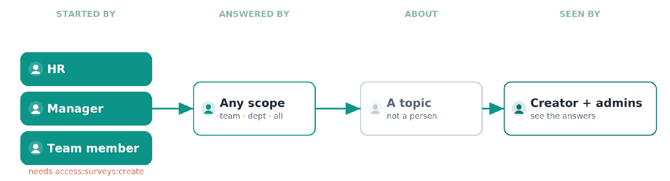
When to use it: someone needs input from a group (a team, a department, a country, everyone) without it being about one person.
- There is no Focus Team Member, so the survey appears on nobody's profile.
- Only the creator and admins with Questionnaires oversight see the answers.
- Internal and external respondents can be mixed in the same questionnaire.
Reaching people outside the company
Because external respondents answer through a private link, a general question also works for audiences outside the company, for example:
-
Exit feedback: collect feedback from a former employee after their account has been closed.
-
Hiring: measure a candidate's interview experience.
Campaign Questionnaires
Campaign questionnaires are run by HR through Processes, with a schedule, reminders and a deadline.
General Questionnaire
-
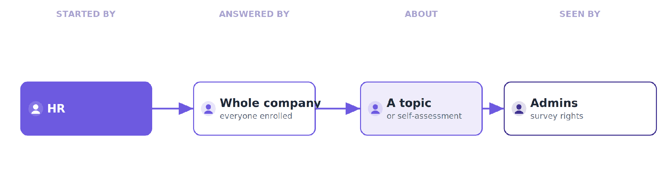
When to use it: HR wants to ask a large population the same thing on a schedule, such as an engagement pulse or a self-assessment.
-
Everyone answers about themselves.
-
One survey serves the whole campaign: 500 people is one survey, not 500.
Downward feedback
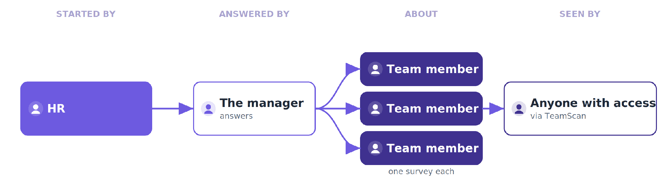
When to use it: HR wants every manager to complete a structured assessment of each of their reports.
-
There is one survey per report, on that report's profile.
-
The manager answers, the report is the subject.
Questionnaires are not anonymous
Any questionnaire about a person shows who answered, including Upward feedback.
Each respondent appears as the author of their answers for anyone who has access to them.
If you need anonymous feedback, Questionnaires is not the right tool.
Templates
Every questionnaire is built from a template.
Templates can use:
-
The standard form-builder fields.
-
HR assessment fields: role, competence, performance, talent, talent aspiration and vision.
RDP, DevelopmentScan and protected paragraph fields are not available in surveys.
When a questionnaire is created, it takes its own copy of the template. Editing or deleting the template later never changes a questionnaire that has already been sent.
How respondents answer
-
Internal respondents
Internal respondents can open the questionnaire from the notification bell, their agenda, or Questionnaires > Assigned to Me.
Save keeps their response as a draft. Submit is final: they can reopen the questionnaire to review their response, but they cannot edit it.
- External respondents
External respondents access the questionnaire through a private link, without logging in.
Once they submit their response, the link can no longer be used.
Where results appear
|
Where |
Who uses it |
What you see |
|
The questionnaire itself (Responses tab) |
The creator, or an admin |
Everyone invited, their status, and each submitted answer |
|
TeamScan individual page (Questionnaires tab) |
Managers and anyone with access to the person |
Every questionnaire the person is the subject of, with answers per respondent. No export. |
|
Admin > Questionnaires |
Admins with survey oversight |
Every questionnaire in the organization, with full exports |
Set up the module
-
Step 1: Activate Questionnaires
Surveys must first be activated for your organization: Contact your Q7Leader Customer Success contact or support to have it switched on. Activation alone gives no access!
Once the module is active, nobody sees anything until permissions are assigned to roles.
-
Step 2: Assign permissions per role
|
Permission |
What it gives |
|
(none) |
Answer a questionnaire you are asked to fill in. No menu, no list. |
|
access:questionnaires |
The Questionnaires menu and the Assigned to Me tab. Also needed to read questionnaire feedback on a person's TeamScan page. |
|
access:questionnaires:create |
Create and send ad hoc questionnaires (Created by Me tab). The Focus Team Member can only be someone you manage. |
|
manage:questionnaires |
Admin > Questionnaires: oversight of every questionnaire in the organization, with full exports. |
|
manage:questionnaires:templates |
Create and manage the organization's questionnaire templates. |
Recommended setup
-
Respondents need no permission. Being invited is enough, so most employees (and all external people) can answer without any questionnaire permission.
-
Give every manager access:questionnaires. Without it, managers get an access error (403) when they try to read feedback about their own people.
-
Give access:questionnaires:create to people who should launch their own ad hoc questionnaires, for example HR and managers.
-
Keep manage:questionnaires and manage:questionnaires:templates for HR admins only.